
You need a simple picture for a short internal guide. Ten minutes later you have several attractive images, but none leaves enough room for the heading. One has a strange object in the background. Another looks like a finished product you have never actually used. Generating options was quick; deciding what could safely go into the guide was not.
A practical workflow starts with the intended job and ends with a checked file. The steps below use a fictional desk-organizer illustration, but the same approach works for other small editorial visuals.
Write the acceptance checks before the prompt
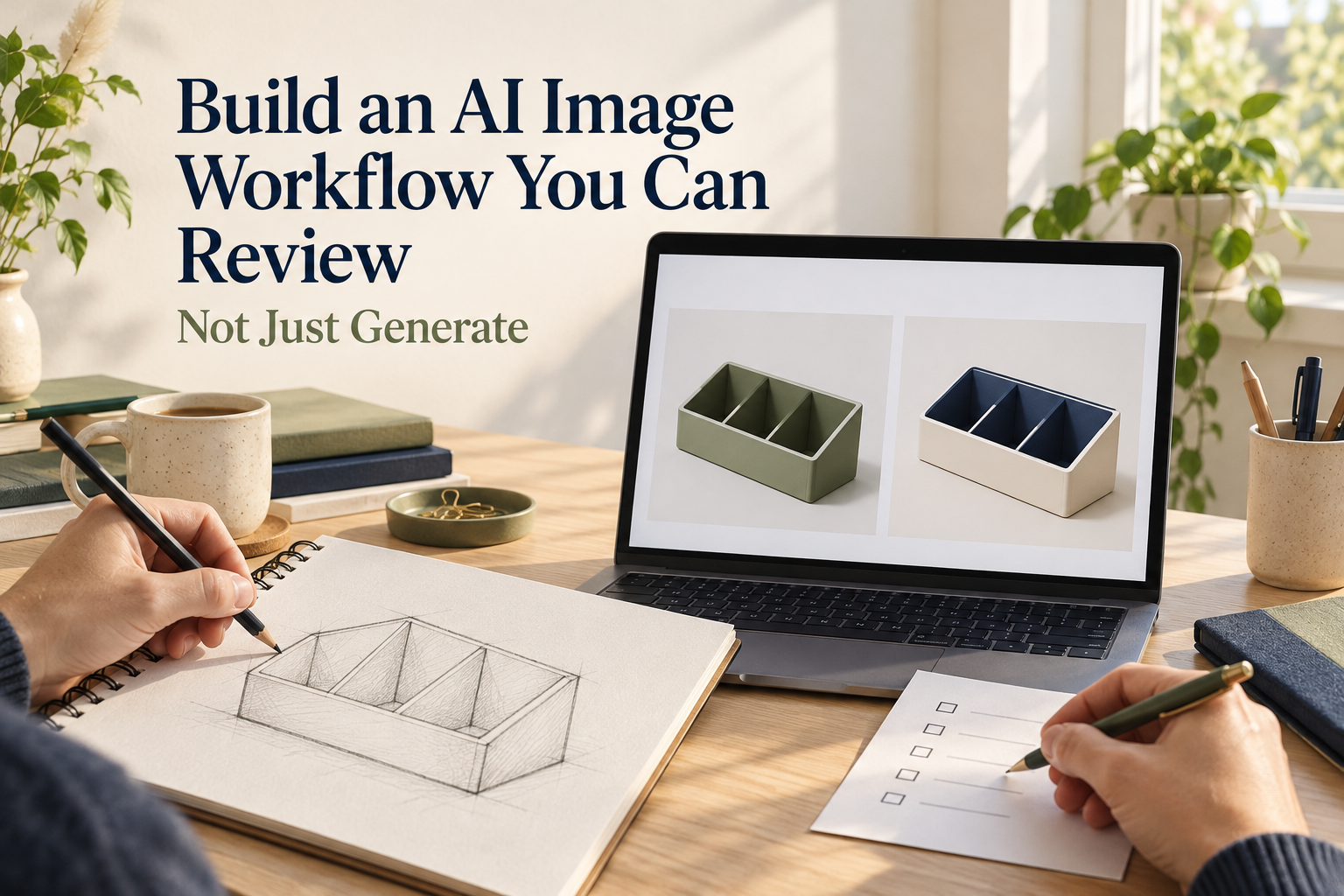
Choose a few visible requirements. For this example: one organizer, three simple compartments, a neutral background, and clear space for a heading. Add “illustration, not a product photograph” to keep the purpose unambiguous.
Keep factual content separate. If the guide explains how a real piece of equipment works, its dimensions and operating steps must come from the appropriate source. A generated image should not become evidence about a product you have not tested.
Use a short checklist that somebody else could apply. “Looks professional” is hard to inspect consistently. “No lettering in the image, no branded objects, and space above the organizer” gives the reviewer specific conditions to check.
Start from text or your own source image
Choose text when you want to explore a general scene. Start from your own sketch when the arrangement matters. Do not use an image you found online without checking whether you have the necessary rights for that use.
An image-to-image drafting tool can help explore variations from a source you control. Keep the source unchanged in a separate file. Any result should still be checked for changed shapes, unexpected objects, and details that no longer match the intended task.
A useful prompt might request a simple organizer on a plain desk, a limited palette, no text, and empty space above. Leave out extra scenery unless it explains something. Each extra object adds another thing that can go wrong or distract the reader.
Change one condition between versions
If the first image is too crowded, reduce the scene. If the layout is wrong, describe the required empty area more clearly. Changing the subject, palette, viewpoint, and layout at once makes it difficult to learn which instruction helped.
Save only a small number of candidates for comparison. Give them short notes such as “clear layout, wrong compartment count” rather than treating the newest result as automatically better.
This also makes review easier. A colleague can inspect two purposeful alternatives faster than a folder of twenty images with filenames that reveal nothing about their differences.
Review the image at two sizes
First enlarge it to inspect edges, repeated parts, and objects that merge together. Then reduce it to the size it will occupy in the guide. Small text areas, faint lines, and clutter often become a problem only in that second view.
Compare the result with the acceptance checks you wrote earlier. If the organizer has four compartments instead of three, the image fails that requirement even if it is attractive. Either revise the visual or change the example openly; do not let the mismatch pass unnoticed.
Keep the image's status clear. If it is conceptual or illustrative, do not caption it as a photograph of a completed workplace setup. Readers should not have to infer whether they are seeing documentation or a visual idea.
Add headings outside the generated image
Place the actual heading and instructions in editable text. That gives you control over spelling, accessibility, and later revisions. It also avoids regenerating the whole visual when somebody changes a few words.
Check the combined layout on a narrow screen if that is where the guide will be read. The image should support the page rather than push the useful instructions below a large decorative block.
When using AIAI as part of the process, document the role it played in your own working notes. You can say a visual was generated or adapted without inventing a detailed testing history or claiming that the image proves a tool's overall quality.
Export a small checked file and keep the editable parts
Choose an export size that suits the destination. Open the exported image independently and inspect it again. A correct editing view does not help if the file you actually upload is an older version or has an awkward crop.
Keep the selected image, its source if applicable, and the editable page text separately. Add a brief note explaining why the chosen version passed review. That makes later updates much easier than trying to remember why one of several similar pictures was used.
Stop when the visual supports the guide clearly. A useful AI image workflow is complete when the next reader can understand the page, not when you have generated every possible variation.




Top comments (0)