
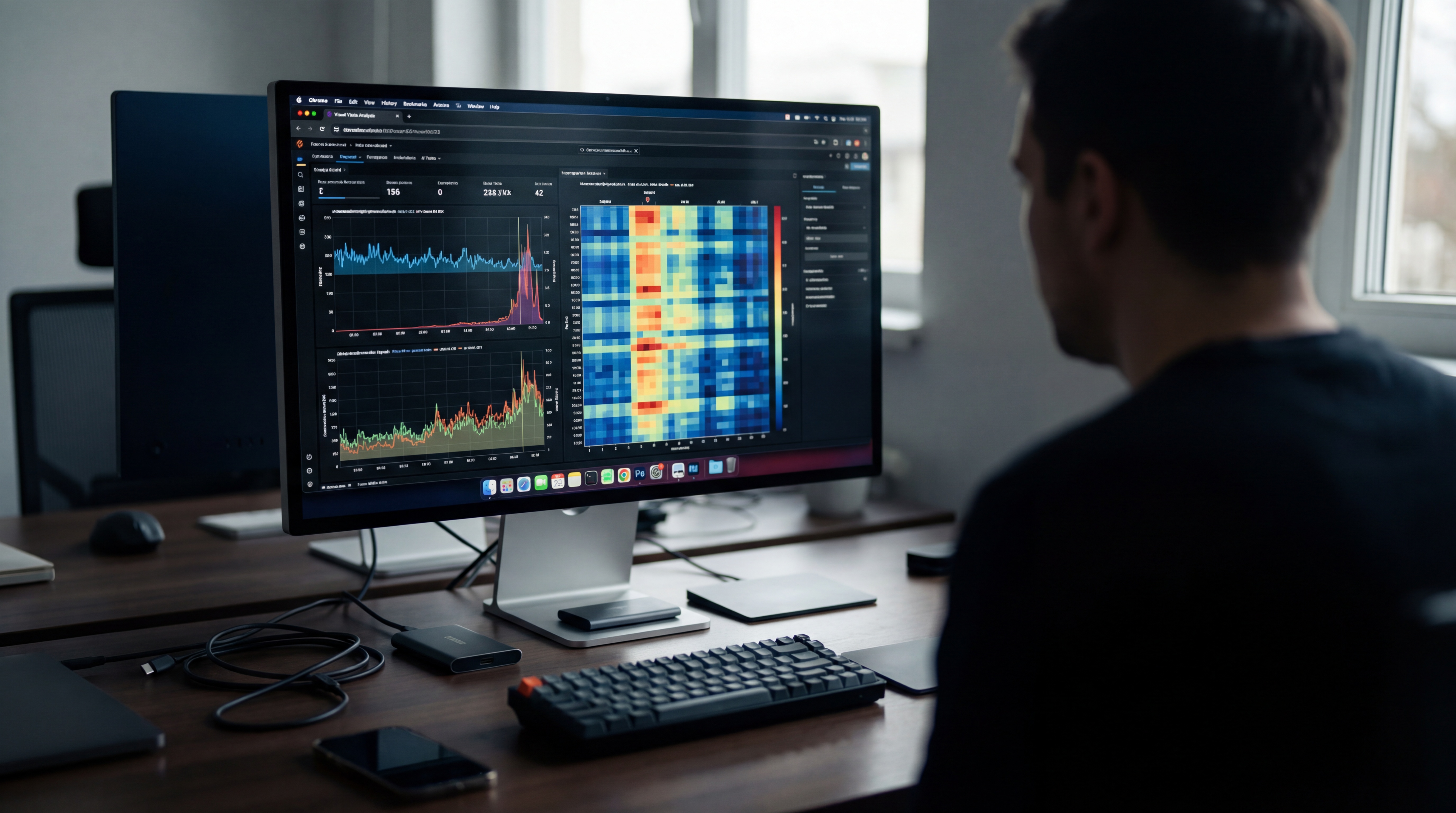

Preview Z-Image by testing photographic detail, exact lettering, and object relationships. Use its official Turbo demo or a local Diffusers run, and keep the prompt with every result. Repository Turbo card
What are the key facts about previewing Z-Image?
| Field | Verified information |
|---|---|
| Developer | Alibaba's Tongyi Lab. ComfyUI documentation |
| Released | Z-Image-Turbo on November 26, 2025; undistilled Z-Image on January 27, 2026. Repository |
| Type | Image generation from text; this evaluation starts with Turbo. Turbo card |
| Size or parameters | 6 billion parameters for the image model. Turbo card |
| License and access | Apache 2.0; official weights and demo linked by the developer. Turbo card Repository |
| Where it runs | A hosted demo, local Diffusers, or the documented ComfyUI workflow. Repository ComfyUI documentation |
Write the intended deliverable before starting the preview. Include both routine scenes and requirements that would make an otherwise attractive image unusable.
Which Z-Image capabilities should you test?
The official materials emphasize photographic images and bilingual text rendering. Translate those claims into tasks you can inspect: a plausible object photograph, a sign with exact lettering, and a scene with an explicit relationship between subjects. That gives each generation a purpose beyond finding a favorite. Turbo card
For an editorial illustration, ask whether the subject reads clearly at the size it will appear on the page. For a product concept, inspect whether the material and shape match the brief. For a sign, transcribe the generated words before judging the design. These are proposed review methods, not benchmark results.
Separate content accuracy from visual appeal in your notes. An attractive café scene may still contain the wrong sign. A correct object count may still produce an unusable composition. Keeping both observations makes the decision more useful to a designer who will have to finish the asset.
If you prefer a visual interface, continue with the sibling Z-Image ComfyUI setup guide. It covers the model files and official template used to establish a working local configuration.
What can a Z-Image preview tell you about model limits?
The published project distinguishes the distilled Turbo release from the undistilled foundation model. That matters when interpreting a preview: a result from one checkpoint should be attributed to that checkpoint. Record the interface, model label, and settings available to you before collecting examples. Project repository
Z-Image-Turbo's documented recipe sets guidance_scale=0.0. The pipeline then bypasses negative-prompt encoding, so put required image content in the main prompt. Turbo card [Pipeline implementation][implementation]
For local timing, measure a prepared configuration and state whether the timer includes loading, generation, and saving. Keep online waiting time separate in your results.
Keep the full trial set, including failed outputs. Record which required elements failed and the work needed to repair them.
How do you preview Z-Image with a practical prompt set?
For an initial look, follow the official demo link in the project repository. For a controlled local trial, prepare the Diffusers environment described by the Turbo card and use Tongyi-MAI/Z-Image-Turbo. The example below adapts that documented Python recipe with an original sign prompt. Project repository Turbo card
import torch
from diffusers import ZImagePipeline

pipe = ZImagePipeline.from_pretrained(
    "Tongyi-MAI/Z-Image-Turbo",
    torch_dtype=torch.bfloat16,
    low_cpu_mem_usage=False,
).to("cuda")
image = pipe(
    prompt='A small cafe sign reading "MORNING CLUB", plain wall',
    width=1024, height=1024,
    num_inference_steps=9, guidance_scale=0.0,
    generator=torch.Generator("cuda").manual_seed(42),
).images[0]
image.save("z-image-sign-test.png")
The card's example uses nine pipeline steps for eight function evaluations. Preserve the documented recipe for this trial; do not replace its settings with the defaults of an unrelated workflow. Turbo card
Build the rest of the review around three original briefs:
- Photograph: A glazed green teapot on linen beside a window, with its handle and spout visible. Inspect shape, material, and the direction of light.
- Relationship: A red bicycle leaning against the left side of a blue garden gate. Inspect the objects, their colors, and whether the requested relationship is clear.
- Lettering: A cream café sign reading “MORNING CLUB” above a smaller line reading “COFFEE AND BOOKS.” Inspect every character and the hierarchy between the lines.
Use several outputs for each brief and keep the whole set. Name files by task and trial rather than subjective labels such as “best.” Write down the exact prompt beside the result so that later changes remain traceable.
Review each image in two passes. First check the literal requirements without considering style. Then consider whether the framing, palette, and visual treatment suit the intended use. This order reduces the temptation to forgive a missing requirement because the composition is appealing.
For a failed result, change one instruction at a time. If the scene relationship is unclear, simplify the background before adding more style language. If text is wrong, reduce the amount of text and inspect the next output. These are suggested experiments, with no guaranteed success rate.
Carry one accepted image through your finishing process. Record cropping, retouching, or replacement typography alongside the generation settings.
When should you compare Z-Image Turbo with Base?
Z-Image Base is the natural alternative when you want guidance, negative prompting, and a broader exploration of outputs across seeds. Its model card describes those controls and recommends a longer sampling schedule than Turbo. Compare each model using its own recipe and the same written creative requirements. Base card
The ComfyUI pillar gives the wider workflow context. A useful comparison ends with a decision about your next project: which model and configuration produced acceptable assets with manageable revision work?
What should you know before evaluating Z-Image outputs?
What can I test in a Z-Image preview?
Z-Image-Turbo generates images from text. Its developer highlights photography and English and Chinese lettering; use a separate prompt for each capability you need to assess. Turbo card
Can Z-Image generate text inside an image?
Z-Image-Turbo's developer documents English and Chinese text rendering. Proofread every required word and inspect its placement before approving an asset. Turbo card
Can I preview Z-Image without installing ComfyUI?
The Z-Image repository links an official hosted Turbo demo and provides a Diffusers example. Record the model and access path used for each test. Project repository
Should I choose Z-Image Turbo or Base after a preview?
Test Z-Image Base if you need guidance and negative-prompt controls. Compare it with Turbo using each model's documented recipe and the same creative brief. Base card Turbo card
Sources
- Project repository
- Turbo card
- Base card
- ComfyUI documentation
- Diffusers reference
- [Pipeline implementation][implementation]
[implementation]: https://raw.githubusercontent.com/huggingface/diffusers/main/src/diffusers/pipelines/z_image/pipeline_z_image.py<!-- pz-related-guides -->




Top comments (0)