
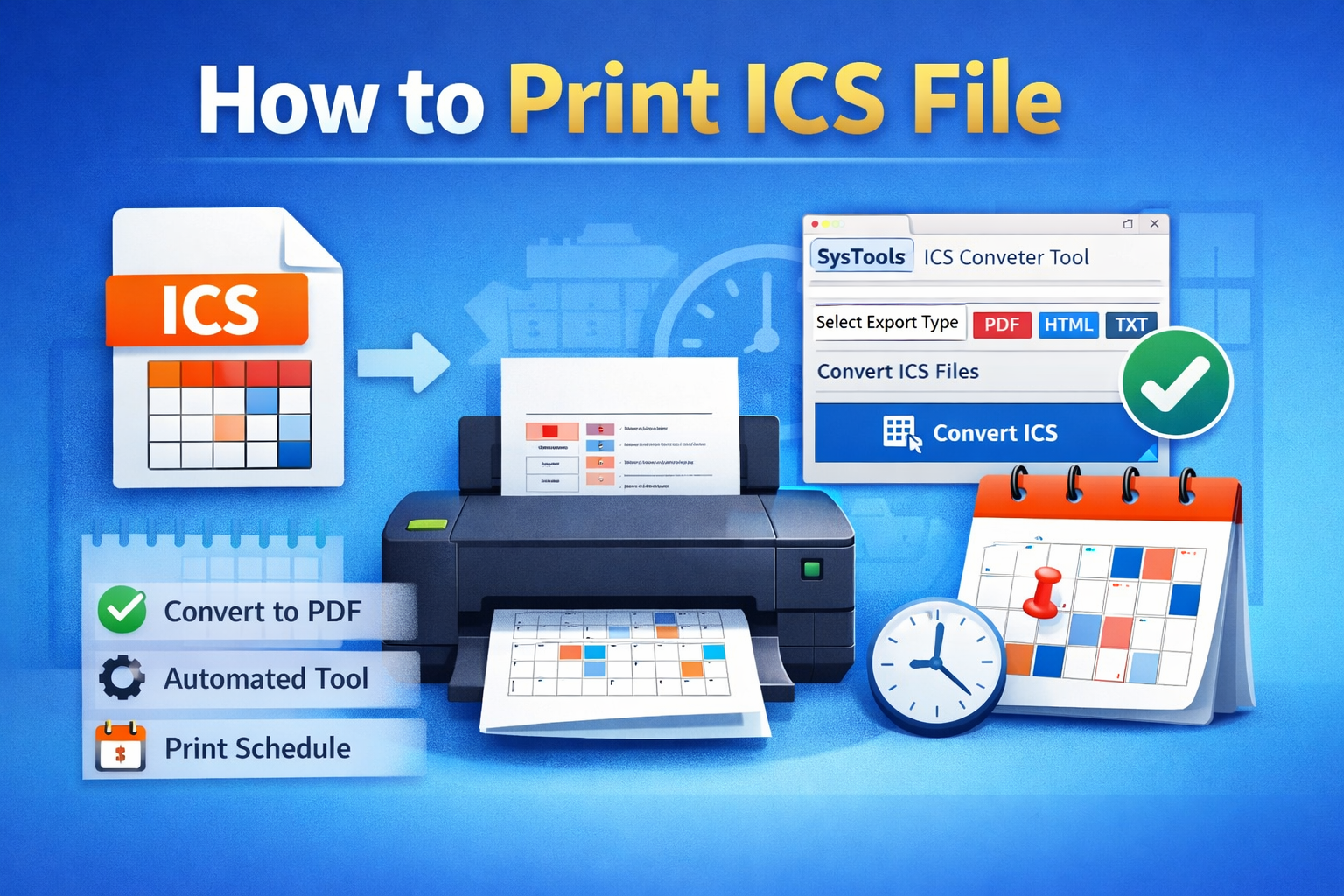

Most calendar data is stored in ICS (iCalendar) file formats, which makes it possible to share events across platforms. However, many users struggle when it comes to the need for a physical printout of their schedules. In this guide, we will cover how to print ICS file using both manual & automated methods and highlight differences in accuracy & readability for personal and professional use.
Introduction to ICS Files and Printing Challenges
ICS file is a widely accepted calendar format to keep records of the event and its details like date, time, description, location etc. Popular calendar applications widely support these files, but that doesn’t always make them easy to print.
- Users often search for how to print ics file because:
- The ICS files can be opened in digital calendars, not printers.
- In the calendar files, layout and formatting options are limited.
- Large calendars can be difficult to print cleanly.
To solve this, several reliable methods exist, ranging from manual calendar-based approaches to advanced automated tools.
Method 1: Print ICS File Using Calendar Applications
One of the simplest ways to understand how to print ICS file is by importing it into a calendar application and using its built-in print feature.
Steps to Print Using Microsoft Outlook:
- Open the Microsoft Outlook application on your system.
- Then, go to the File tab and choose Open & Export, then Import/Export.
- After that, select Import an iCalendar (.ics) file.
- Now, select your ICS file and import it into the calendar.
- Then, navigate to File and choose the Print option.
- Nextly, choose calendar style (Daily, Weekly, Monthly).
- Finally, adjust printer settings and click Print.
Steps to Print Using Google Calendar:
- Open Google Calendar in your browser
- Then, click on the Settings icon.
- After this, choose the Import & Export option from the tab.
- Now, import the ICS file and select the calendar view.
- Then, click on the Print option.
- At last, save as PDF or print directly. This approach helps users exploring how to print .ics file without installing extra software.
Cons:
- This method contains limited customization.
- It is not ideal for large ICS files.
Method 2: Print ICS File Using Apple Calendar (macOS)
Mac users can rely on Apple Calendar to print ICS files. The steps are:
- Firstly, double-click the ICS file to open it in Apple Calendar.
- Then, confirm the calendar import.
- Now, switch to the preferred view, such as Day/Week/Month.
- Then, click on the File option and choose Print.
- Lastly, customize the layout and print as per your requirement.
Limitations:
- It has minimal formatting control.
- It is not suitable for exporting selective events.
Method 3: Convert ICS File to PDF Before Printing
It is advisable to convert ICS files into PDFs as many users prefer that. This process enhances the print quality and formatting which is why it is usually suggested when looking how to print ICS file properly. To implement this way the steps are:
- First, you need to import ICS file into a calendar app.
- Then, use the Print option and select Save as PDF.
- After this, open the PDF file.
- Lastly, print from any device.
Disadvantages:
- It has limited formatting options in calendar applications.
- This method has no direct print option from raw ICS file.
- Contains time-consuming import and export process.
- There are risk of missing event details during printing.
However, this still requires manual effort and multiple steps.
Method 4: Print ICS File Via Professional Solution
If you deal with calendar files often, and want to know how you can print ICS files then the best way to do that is by using an automated solution like SysTools ICS Converter Software. That said, this tool is for the users who like accuracy, speed and flexibility without being technically complicated. The tool has very simple UI for both technical and non technical users. Also, check out a few of this ultimate utility core features we have outlined below:
- This tool directly converts ICS to printable formats like PDF, HTML and Text.
- Provides the feature of Bulk ICS file processing.
- It helps to maintain the event structure and formatting.
- The software doesnot depend on email or calendar apps.
Steps to Print ICS File Using this Tool
- Download and launch the above-mentioned tool.
- Then, click on Add File or Add Folder to upload ICS files.
- Now, preview calendar events with complete details.
- After that, select the output format as PDF or Print.
- Then, choose the destination location to save the ICS file.
- At last, click on the Export button to begin the process.
This automated approach eliminates confusion and clearly answers how to print ICS file for both beginners and professionals.
Common Issues While Printing ICS Files
While learning how to print ics file, users often face:
- Missing event details
- Incorrect date/time formatting
- Multiple pages with poor alignment
- Print errors due to large calendars
Using a professional tool significantly reduces these risks.
Best Practices for Printing ICS Files
- You should always preview before printing.
- Choose the export type as PDF for better layout.
- Use automated tools for bulk calendars.
- Keep the original ICS files backed up.
- These practices ensure consistent and professional print results.
Conclusion
How to print ICS file does not have to be complicated. Calendar apps do provide basic print features but do not meet bulk processing and formatting needs. The above mentioned Tool is the best-suited automated technology that does all this within a few minutes by helping users find an ultimate solution to their legal troubles and offer professional help with flying colors for fast results.
Printing personal schedules, business meetings or the shared calendar method makes sense, as long as you instantly pick a method to avoid wasting time and drawing frustration.



Top comments (0)