

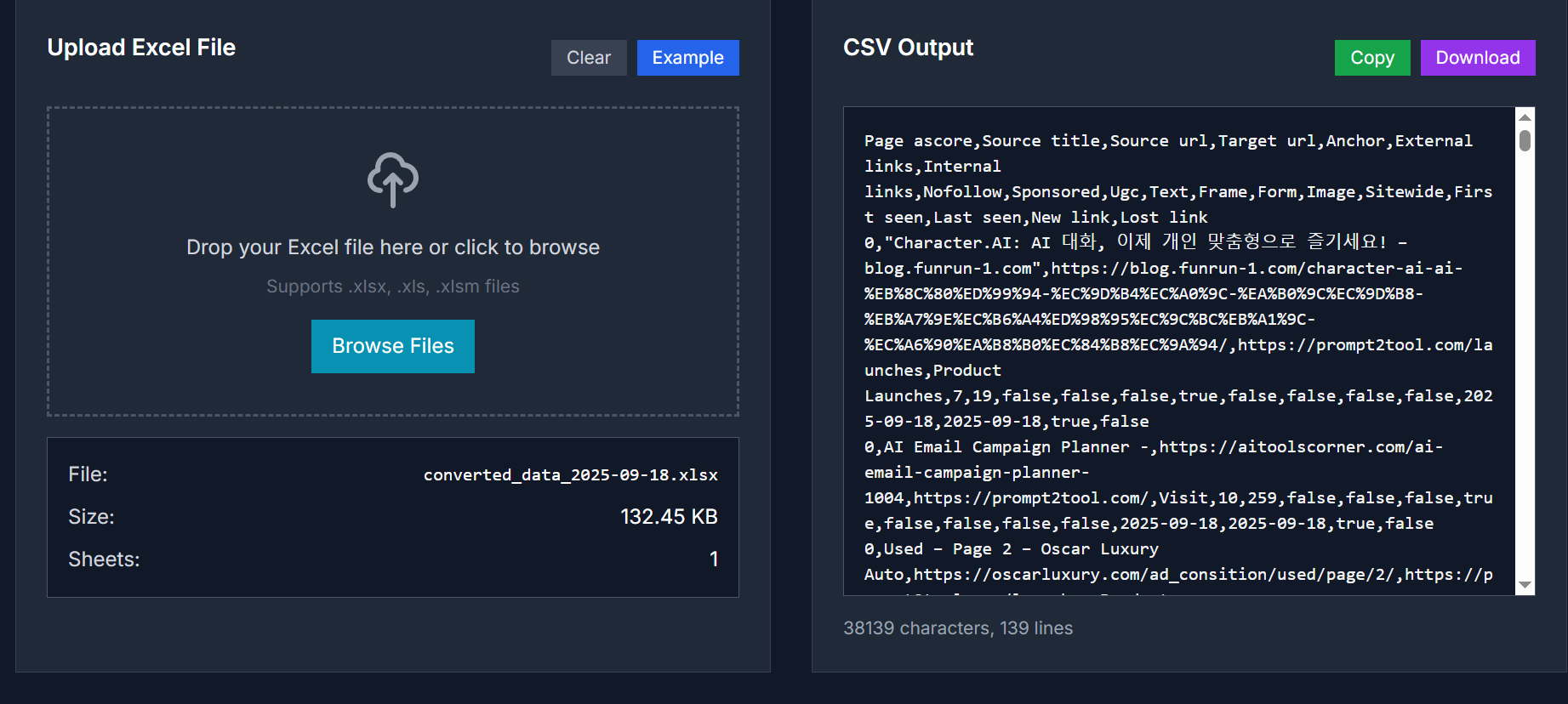
The Excel to CSV Converter is a free, browser-based tool that allows you to convert Excel spreadsheet files (.xlsx, .xls, .xlsm) into CSV (Comma-Separated Values) format. This tool is ideal for developers, data analysts, and anyone who needs to transform Excel data into a plain-text format for compatibility with databases, programming languages, or data processing tools.
Key Features
-
Input Methods:
- Drag and drop your Excel file into the designated area.
- Click to browse and select your Excel file from your device.
-
Supported Formats:
- .xlsx (Excel 2007 and later)
- .xls (Excel 97–2003)
- .xlsm (macro-enabled Excel files)
-
Conversion Options:
- Select Sheet: Choose a specific sheet to convert if your Excel file contains multiple sheets.
- Download Options:
- Download the selected sheet as a CSV file.
- Download all sheets as separate CSV files.
- Data Preview: Preview the data before downloading to ensure accuracy.
Use Cases
| Scenario | Benefit |
|---|---|
| Database Import | Convert Excel data to CSV format for easy import into databases like MySQL, PostgreSQL, or SQLite. CSV is universally supported. |
| Data Analysis | Prepare Excel data for analysis tools like Python pandas, R, or statistical software that prefer CSV format for data processing. |
| Web Development | Convert Excel files to CSV for web applications, APIs, or JavaScript projects that need to process tabular data efficiently. |
| Data Migration | Migrate data between different systems and platforms. CSV serves as a universal format for data transfer and backup purposes. |
| Reporting Tools | Convert Excel reports to CSV for integration with business intelligence tools, dashboards, or automated reporting systems. |
| Mobile Applications | Prepare data for mobile apps that need lightweight CSV files instead of complex Excel formats for better performance and compatibility. |
How to Use
- Upload Excel File: Drag and drop your Excel file into the designated area or click to browse and select your Excel file.
- Select Sheet: If your Excel file contains multiple sheets, choose the specific sheet you want to convert.
- Convert to CSV: Click the "Convert to CSV" button to initiate the conversion process.
- Download CSV File: Once the conversion is complete, download the CSV file to your device.
FAQ
What is an Excel to CSV converter?
An Excel to CSV converter is a tool that transforms Excel spreadsheet files (.xlsx, .xls, .xlsm) into CSV (Comma-Separated Values) format. CSV is a simple, universal format that stores tabular data in plain text, making it compatible with various applications, databases, and programming languages.
Is this Excel to CSV converter free to use?
Yes, our Excel to CSV converter is completely free to use. There are no charges, registration requirements, subscription fees, or limitations on file size or number of conversions. You can convert as many Excel files as you need without any restrictions.
Is my Excel file data safe when using this converter?
Absolutely. Your privacy and data security are fully protected. All conversions are performed locally in your browser using JavaScript. No files are uploaded to our servers, and no data is transmitted over the internet. The tool works completely offline once loaded.
What Excel file formats are supported?
Our converter supports all modern Excel formats including .xlsx (Excel 2007+), .xls (Excel 97-2003), and .xlsm (macro-enabled Excel files). It can handle multiple worksheets, various data types, and preserves data integrity during conversion.
Can I convert multiple Excel sheets at once?
Yes, when your Excel file contains multiple sheets, you can either select a specific sheet to convert or download all sheets as separate CSV files. Each sheet will be converted to its own CSV file with the sheet name included in the filename.
What happens to Excel formulas during conversion?
Excel formulas are converted to their calculated values in the CSV output. Since CSV format only supports plain text and numbers, formulas cannot be preserved. However, the results of the formulas (the displayed values) are accurately converted to the CSV file.
How are special characters and formatting handled?
Special characters are properly escaped in the CSV output following standard CSV formatting rules. Text containing commas, quotes, or line breaks is automatically enclosed in quotes. However, Excel formatting like colors, fonts, and cell styling is not preserved in CSV format.
Is there a file size limit for Excel files?
The file size limit depends on your browser's memory capacity. Most modern browsers can handle Excel files up to 50-100MB. For very large files, the conversion might take longer, but there are no artificial restrictions imposed by our tool.
Try It Now
Convert your Excel data to CSV online:
👉 Excel to CSV Converter



Top comments (0)