

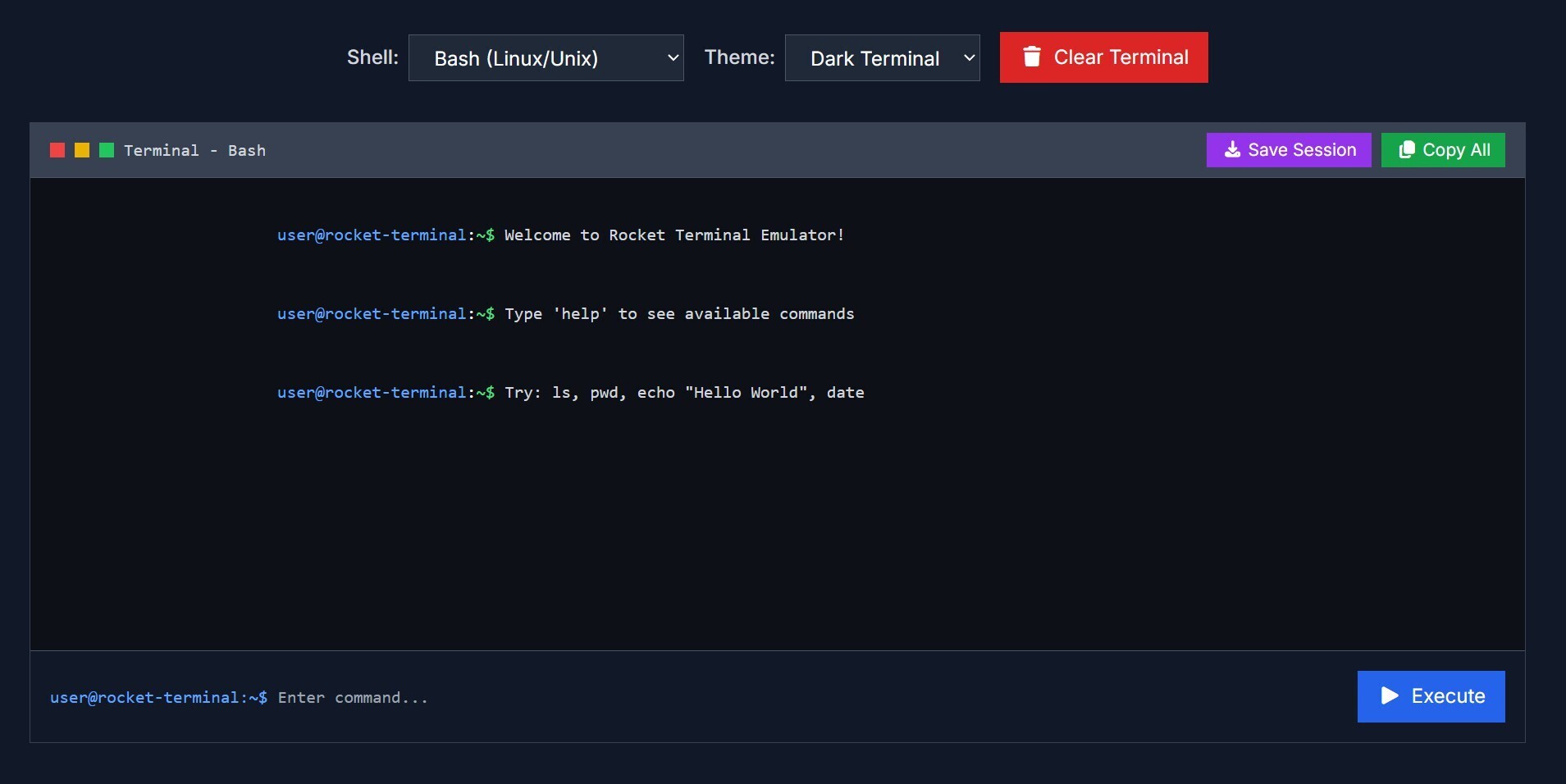
I’ve been using Rocket Terminal Emulator to replicate real terminal experiences right inside my browser, and I’m genuinely impressed by its fidelity. It supports Bash, PowerShell, CMD, and Zsh, so I can switch contexts depending on whether I'm writing Linux scripts or Windows batch commands. The syntax highlighting, command history, and prompt styling all feel like I’m working in a native shell.
One of the most useful features is the “Save Session” option. Whenever I’m drafting a tutorial or recording a demo, I run several commands, save the full session as a formatted text file, and embed it into documentation. It’s so much easier than copy-pasting snippets or worrying about formatting breaks. I also like that command history is preserved locally in my browser, so I can revisit past inputs without logging into anything.
It’s surprisingly robust for being browser-based. The emulator supports typical keyboard shortcuts—arrow keys to navigate history, Ctrl+C to interrupt commands, Tab for suggestions—and commands behave realistically. Because it’s a simulation, there’s zero risk of accidentally deleting files or messing with my system. That makes it a safe playground for trying out scripts I’m not 100% confident about.
In my daily workflow, Rocket Terminal Emulator has become invaluable for cross-platform testing. I often need to check how a command differs between Bash and PowerShell, and instead of switching machines or remote sessions, I use this tool to compare. It’s also perfect when I’m mentoring or teaching: I can project a shell to students without worrying about OS mismatches or access issues.
So far, I’ve used it while drafting blog posts, writing onboarding guides, and preparing workshop slides. Each time, the terminal output feels genuine and consistent. Many users would skip over command line issues until deployment, but now I catch shell syntax or environment discrepancies early. Rocket Terminal Emulator has become a go-to step in my development and documentation process.






Top comments (0)