


“The light changes gently” is not much of a record on its own. Which picture did you use? Was it the cropped version? What frame shape did you select? Did the lantern stay in place, or did you only plan to check that?
When using a free image to video generator, no signup required, save the prompt with the conditions that gave it meaning. A small local folder is enough. The aim is to understand and revise an attempt later, not to promise that the same words will produce the same video again.
This article was prepared for Sea Imagine AI with AI assistance. The lantern scenes were created with an AI image tool, and the records below are teaching examples. No video clip was generated or measured for this article.
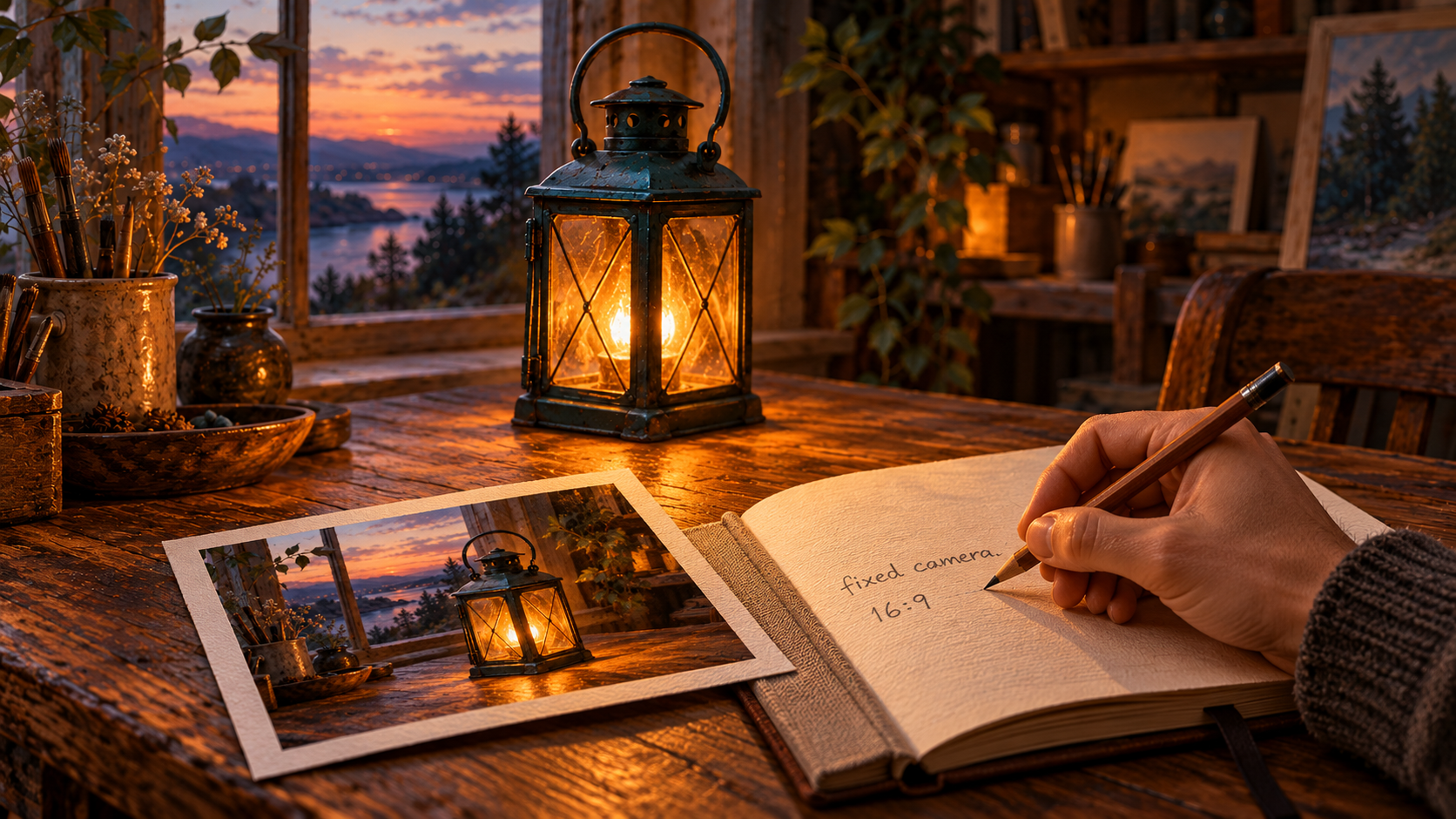
AI-made record-planning scene: pair the source image with the motion instructions and frame shape. The complete example record is in the text below.
Keep the source and the upload copy separate
Create a folder named for the scene and date, such as lantern-2026-10-27. Put your untouched original inside it before cropping, resizing or making other changes. Add a short permission note if the image came from a collaborator or a licensed source.
Make a separate copy for upload. Name it something like lantern-upload-v01.png, and write down the actual version used. If you later remove a distracting object or change the crop, save v02 rather than silently replacing v01.
For an image-to-video prompt, the image is part of the instruction. Two different crops paired with the same words are two different attempts. If you use a last-frame image as well as a first-frame image, record both and their order.
Save the request before submitting it
Create a plain text file such as attempt-01.txt. You do not need specialist software. Paste the exact motion prompt, then add the visible settings you selected.
Here is an unfilled example for the lantern scene. The bracketed fields are things to record, not claims about a completed run:
Attempt: 01
Date: [actual date]
First image: lantern-upload-v01.png
Last image: [file name, or not used]
Prompt: The light inside the lantern changes gently in brightness.
        The lantern stays on the table. Keep the camera fixed.
Frame shape: 16:9
Page label: MiniMax H3
Free output listed on page: 480p / 5 seconds
Result: [not generated yet / pending / downloaded]
Downloaded file: [actual file name, or none]
Observation: [fill after viewing; leave blank until then]
Recording the page label is useful context, but MiniMax H3 on the page does not establish an independently verified underlying model or a quality guarantee. Record what you can see rather than guessing hidden settings.
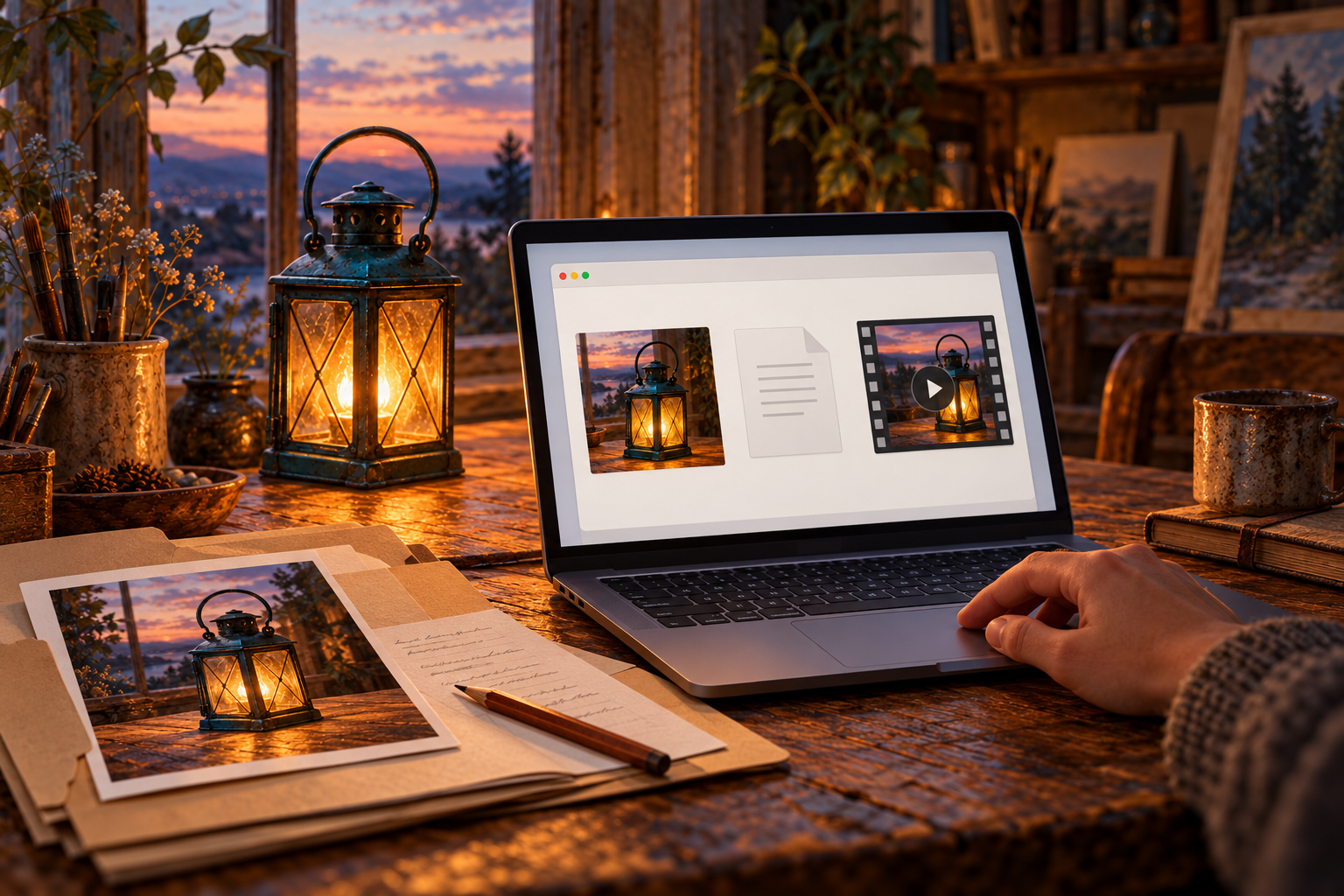
AI-made organisation concept: keep the image, prompt and any actual download together. The screen is illustrative, not evidence of a completed attempt.
With the input and text record prepared, Sea Imagine AI provides a free page for trying a five-second candidate without creating an account. The current page lists 480p output, 16:9, 9:16 and 1:1 options, and JPEG, PNG or WebP image inputs. First and last image inputs are optional; this example uses the lantern image as its starting reference.
Complete verification and allow for the free queue. If the attempt is pending, write “pending” rather than creating a record that implies you already have a video. The page’s unlimited claim is about total attempts. It does not mean instant completion or unlimited simultaneous jobs.
Name the download after the attempt
When a candidate is actually ready, download it into the same folder. Preserve the real file extension. If the downloaded file is an MP4, attempt-01.mp4 is a useful name; do not rename a different file type to MP4 just to match this example.
Open the local file and make sure it is the clip you meant to keep. Then write a short observation in attempt-01.txt. Be specific: “the light changes, but the lantern handle bends at the end” is useful if that is what you actually see. “Bad result” gives you little to work with next time.
If the download fails, record that instead. A filename in a note is not evidence that a file exists or plays. Keep the original still whether you accept, reject or never receive a candidate.
Make the next version understandable
For a second attempt, duplicate the text record as attempt-02.txt and change the fields that really changed. If you reduced the motion, keep the image version visible in the record. If you changed the crop, name the new image even if the prompt stayed identical.
This lets you say “same photo, smaller light change” or “same prompt, wider crop.” It does not isolate every hidden cause of a different output, and it is not a controlled performance test. It simply prevents your own preparation from becoming guesswork.
When sharing a prompt with another creator, include the relevant input conditions and say whether a reference image can be shared. Remove private material first. A prompt can be useful to someone else without publishing every source file.
Check your own copy before leaving
The page describes history kept in the current browser, not a cross-device cloud library. Do not depend on it as the only copy when changing browsers or clearing website data.
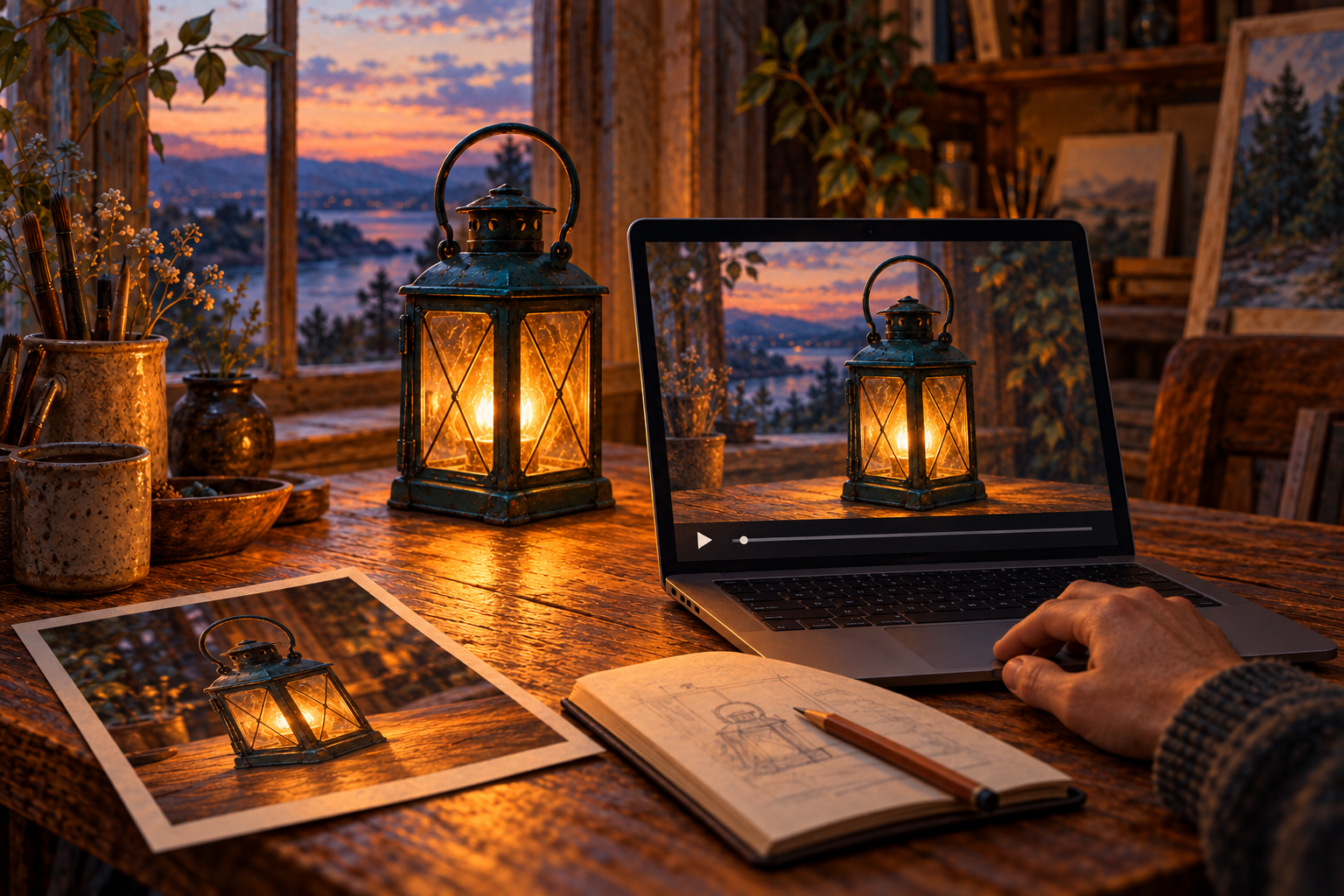
AI-made playback-check concept: open your downloaded file and compare it with the retained source. This is not a screenshot or an actual video output.
Before closing the tab, check that you have the original, the upload version, the exact prompt and settings, and any clip you actually downloaded. Make sure the note says which result belongs to which attempt and whether you decided to use it.
You can then leave with something more useful than a line of prompt text: a record that explains what you asked, what you supplied and what you observed. That is enough to begin the next attempt deliberately, even if you choose a different tool or decide the still was the better piece.



Top comments (0)