

A lot of voiceover scripts now start in a chat window. You ask for a two minute explainer, paste the result into a text to speech tool and press play. Then you hear it: sentences that run out of breath, a list read like a grocery receipt, an abbreviation spelled out letter by letter. The text was written to be read, not heard.
The fix isn't a better voice. It's a better script, and a chatbot can help with that too if you ask the right way. Here are the prompts I use to turn a written draft into something a voice can actually say.
Prompt 1: shorten the sentences
Rewrite this script for a voiceover. Keep the meaning and
the order. Split any sentence longer than 20 words into
two. Do not add new information. Return only the script.
Long sentences are the most common problem. On a page your eye can jump back to the start of a clause. In audio the listener can't, so by the end of a 40 word sentence they've lost the subject. Twenty words is a rough ceiling, not a rule, but it catches most of the worst offenders.
"Do not add new information" matters. Without it, chatbots like to pad a rewrite with extra examples and you end up with a longer script than you started with.
Prompt 2: say numbers and symbols the way a person would
In this script, rewrite every number, date, symbol,
abbreviation and URL the way a narrator would say it out
loud. For example, "$6.99" becomes "six ninety-nine",
"3x" becomes "three times" and "e.g." becomes "for example".
List any you are unsure about at the end.
Text to speech engines are good at common numbers, but they guess on anything unusual. "2026" can be read as a year or as two thousand twenty six. "km/h" might come out as letters. Writing them out removes the guesswork, and the list at the end shows you which ones to check by ear.
Prompt 3: mark where to breathe
Add a line break wherever a narrator would naturally pause
for a breath, and an empty line between ideas. Do not
change any words.
Pauses do as much for clarity as word choice. Most text to speech tools treat line breaks and paragraph breaks as short and long pauses, so this prompt gives the voice a rhythm without any special markup. If your tool supports explicit pause tags, you can ask the chatbot to insert those instead.
Prompt 4: flag words that might be mispronounced
List every name, brand, technical term or foreign word in
this script that a text to speech voice might mispronounce.
For each one, suggest a phonetic spelling that would help.
This is the prompt that saves the most re-renders. Product names, surnames and borrowed words trip up every voice engine sooner or later. Having the list before you render means you can fix them in one pass.
Prompt 5: make lists sound like speech
Find any bullet lists or numbered lists in this script and
turn them into spoken sentences. Use "first", "then" and
"finally" where order matters. Keep each item short.
Read aloud, a bullet list sounds like a list of fragments. Turning it into a few connected sentences keeps the listener with you.
What to leave out
A few things in a written draft never work in audio:
- Parentheses and asides. A voice reads them at the same level as everything else, so the aside interrupts the sentence. Move them into their own sentence or cut them.
- "As you can see" and "below". There's nothing to see. Replace with "as you'll hear" or drop the phrase.
- Headings read as sentences. Either remove them or turn them into a spoken lead in like "Next, let's talk about pricing."
- Emoji and special characters. Some voices skip them, some read their names. Neither helps.
Rendering the script
Once the script is clean, the rendering side matters too. A few things to look for in a text to speech tool, especially for anything longer than a short clip:
- No hard character limit, so a full episode or chapter renders as one file instead of a dozen pieces you have to stitch together.
- Subtitles from the same render, so captions match the audio exactly instead of drifting.
- Pause and pronunciation control inside the script, so the fixes from Prompts 3 and 4 actually take effect.
- Commercial use if the voiceover goes into anything you publish or sell.
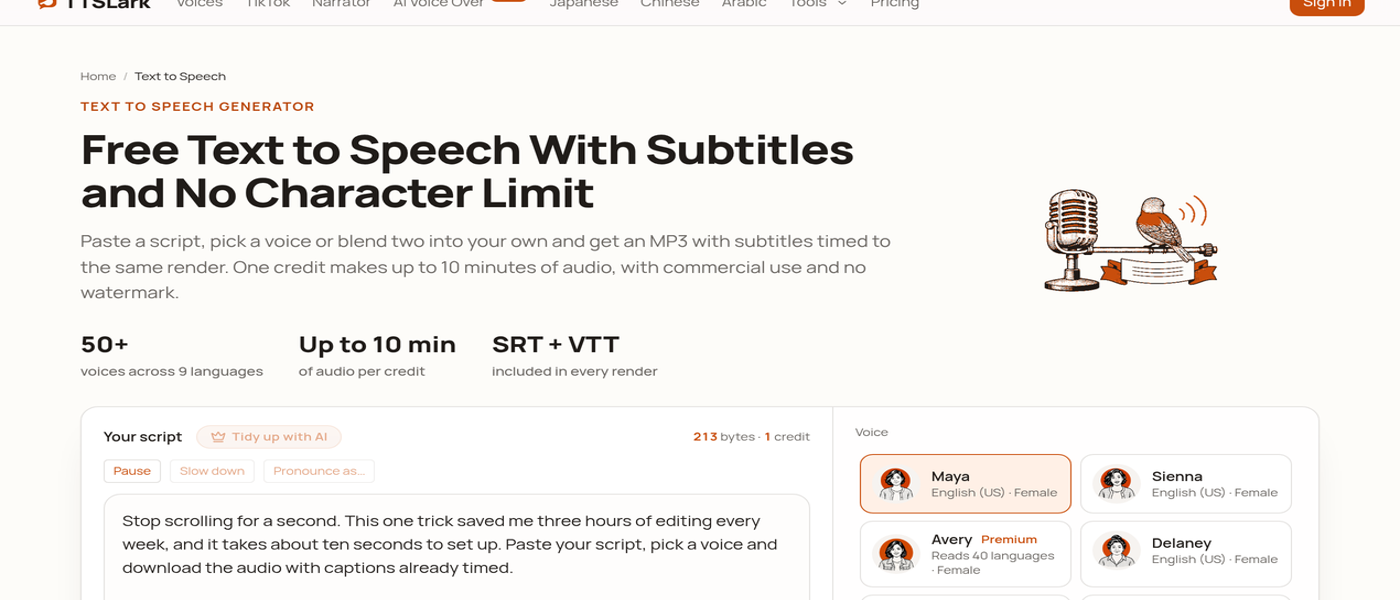
TTSLark is built around those points. You paste a script of any length, pick one of 54 voices in 9 languages, or blend two voices into one of your own, and download a single MP3 with SRT and VTT subtitles timed to it. Pauses and pronunciation can be controlled inside the script. New accounts get 5 free credits that never expire, one credit covers up to 10 minutes of audio, and commercial use is allowed on every plan. There's a page on long scripts and narrator voices for audiobooks, podcasts and video essays, which is where the prompts above make the biggest difference.
A routine that works
- Draft the script however you like, with or without a chatbot.
- Run Prompts 1 and 2 to make it speakable.
- Run Prompt 4 and fix the pronunciation list.
- Run Prompt 3 for pauses, then Prompt 5 if there are lists.
- Render a short section first and listen to it. Fix anything that sounds off, then render the full script.
Listening to the first 30 seconds before rendering ten minutes is the cheapest habit you can build. Most problems show up early, and fixing them in the text is always faster than fixing them in an audio editor.






Top comments (0)