
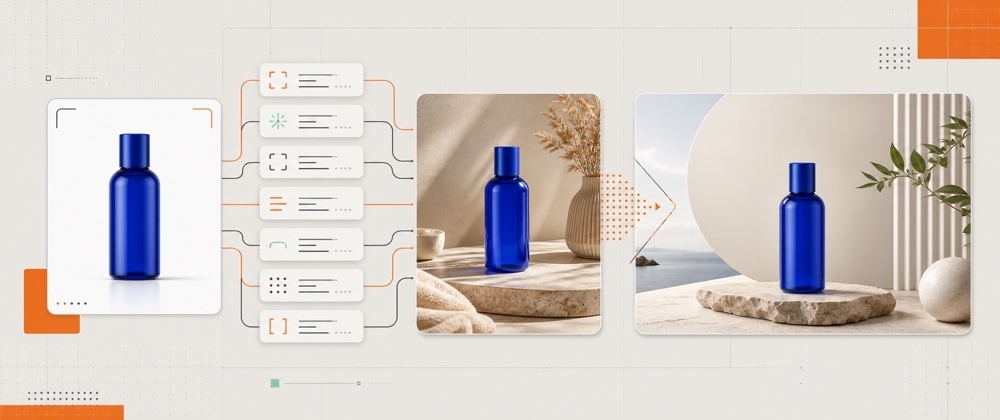

Most product-photo prompts describe a mood but forget the product. The background improves, yet the bottle changes shape, a clasp disappears, or the label quietly becomes fiction.
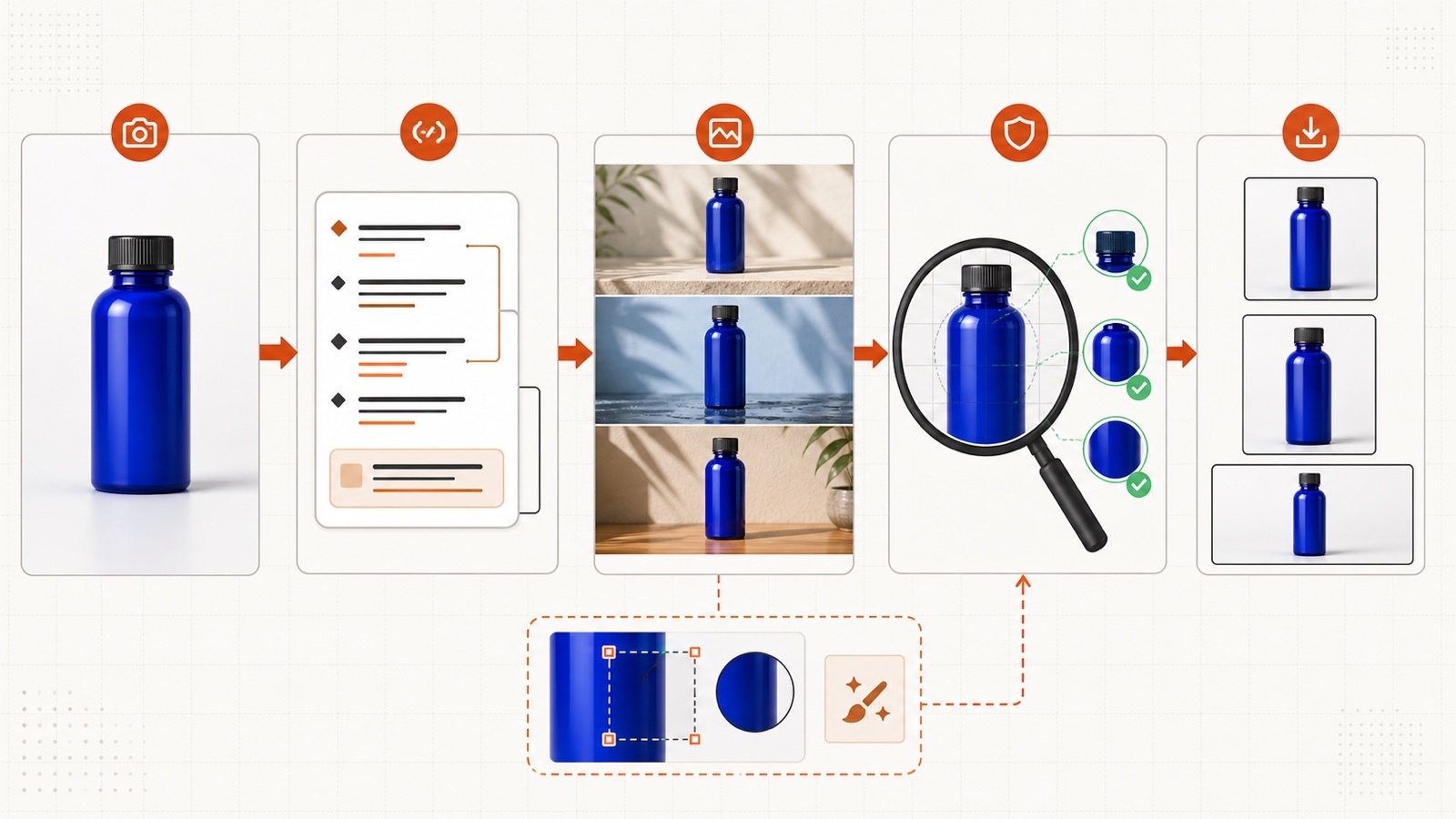
The seven templates below take a stricter approach. They treat the reference image as the source of truth, define what may change, and add a specific check before export. The prompts are free to copy and adapt for ecommerce listings, lifestyle scenes, social posts, and local corrections.
Disclosure: This post includes a promotional link to the Seedream 5.0 Pro AI Generator on Flyne AI. The prompt templates and review checklist are original editorial material. Check current credits, terms, and commercial-use rules before generating.
Why these Seedream 5.0 Pro prompts use an identity lock
The official Seedream 5.0 Pro page describes reference-guided generation, precise regional editing, 2K output, and native text support. Those capabilities are useful for product work, but a capable model still needs a clear boundary between the product and the scene.
Every template therefore has three layers:
- Product identity lock: the features that must remain unchanged.
- Allowed change: the one thing the model may redesign.
- Export check: the detail a human must compare with the source photo.
This is more reliable than asking for a “premium product photo” and hoping the model guesses which details matter.
How to use the free prompt templates
Start with a clear reference photo that you have permission to use. The product should be fully visible, evenly lit, and not covered by a hand or prop.
Replace every item in square brackets. Then run one prompt at a time. The browser workflow provides controls for adding a reference, choosing a ratio and resolution, and refining a selected area.
Do not upload confidential packaging, unreleased products, customer data, or assets you are not authorized to process. A generated product image should also be checked against a real photo before it appears in a store.
Prompt 1: Clean white-background listing image
Best for: marketplace thumbnails, catalog grids, and a neutral master image.
Use the uploaded reference image as the source of truth.

Create a clean ecommerce listing photo of [PRODUCT] on a seamless
warm-white studio background. Center the product and use soft,
even studio lighting with a natural contact shadow.

Product identity lock:
- preserve the exact silhouette, proportions, cap or closure,
  materials, colors, label placement, and visible accessories;
- keep the camera-facing side of the product unchanged;
- do not invent text, logos, reflections, props, or extra parts.

Allowed change:
- replace only the background and lighting environment.

Output:
- [ASPECT RATIO];
- enough margin for a marketplace thumbnail;
- realistic edges and no floating appearance.
Before exporting, compare the silhouette, color, closure, and label position with the source image. A clean background is not useful if the item itself has changed.
Prompt 2: Lifestyle scene without redesigning the product
Best for: product pages, editorial cards, and social content that needs context.
Use the uploaded reference image as the source of truth.

Place [PRODUCT] in a calm [SCENE] with [SURFACE MATERIAL] and
[ONE SUPPORTING PROP]. Use [TIME OF DAY] light and a restrained
[COLOR PALETTE] palette. Keep the product as the clear focal point.

Product identity lock:
- preserve the exact product shape, dimensions, materials, colors,
  label, closure, and included parts;
- keep all identifying details visible and undistorted;
- do not add a hand, duplicate the product, or create accessories
  that could be mistaken as included in the purchase.

Allowed change:
- create the environment, surface, lighting, and shadow only.
Use one supporting prop, not a whole mood board. Fewer invented objects make the image easier to audit and less likely to mislead a buyer.
Prompt 3: Ecommerce hero banner with safe copy space
Best for: website headers, campaign banners, and landing-page hero sections.
Create a wide ecommerce hero image using the uploaded [PRODUCT]
reference. Place the unchanged product in the [LEFT/RIGHT] third.
Reserve clean negative space in the opposite half for headline and
button copy that will be added later in a design editor.

Scene:
- background: [BACKGROUND DIRECTION];
- lighting: [LIGHTING DIRECTION];
- mood: [MOOD];
- aspect ratio: 16:9.

Product identity lock:
- preserve the exact silhouette, proportions, materials, color,
  label placement, closure, and accessories;
- do not generate text, logos, buttons, badges, prices, or UI;
- do not crop the product or place objects inside the copy-safe area.
Adding text later is usually safer than asking an image model to finalize a full marketing layout. It also lets one approved image support several campaigns.
Prompt 4: Material and detail close-up
Best for: secondary gallery images that explain texture, finish, or construction.
Create a realistic close-up detail image from the uploaded [PRODUCT]
reference. Focus on [REAL FEATURE], such as the weave, surface finish,
stitching, clasp, embossed mark, or material transition.

Use a [MACRO / CLOSE-UP] composition with soft directional light.
Show only details that are visible in the reference image.

Product identity lock:
- preserve the real material, color, texture direction, construction,
  hardware, and edge geometry;
- do not invent pores, stitching, engravings, seams, gems, controls,
  or performance features;
- do not exaggerate gloss, thickness, softness, or scale.

Output:
- sharp focus on [REAL FEATURE];
- natural falloff around the detail;
- [ASPECT RATIO].
This prompt is deliberately conservative. A detail image should explain the product, not manufacture evidence about its quality.
Prompt 5: Adapt one approved scene to multiple formats
Best for: turning one approved composition into square, portrait, and wide assets.
Use the approved reference composition as the source of truth.

Adapt it to [TARGET RATIO: 1:1 / 4:5 / 16:9] without redesigning
the product or changing the visual direction.

Preserve:
- the exact product identity, scale, color, materials, label, and angle;
- the approved lighting, background palette, and shadow direction;
- the main visual hierarchy.

Allowed change:
- extend or crop the background naturally;
- adjust empty space so the product remains fully visible;
- reposition background-only props when required by the new frame.

Do not stretch, rotate, duplicate, relight, or regenerate the product.
Run this prompt separately for each ratio. Asking for three exports in one image may produce a contact sheet instead of three usable assets.
Prompt 6: Short text panel with a manual spelling check
Best for: simple promotional cards that need one short headline.
Create a [ASPECT RATIO] promotional product card using the uploaded
[PRODUCT] reference.

Keep the product unchanged and place it in [POSITION]. Add this exact
headline in the empty area:
"[EXACT SHORT HEADLINE]"

Typography:
- clean [TYPE STYLE];
- high contrast;
- generous spacing;
- no additional words, price, logo, badge, disclaimer, or button.

Product identity lock:
- preserve the product silhouette, proportions, materials, color,
  label, closure, and included parts;
- do not let text overlap or alter the product.
Inspect every character at full size. If one letter is wrong, remove the generated text and add it in a layout editor. Never publish a headline only because it looks correct at thumbnail size.
Prompt 7: Repair one area without regenerating the image
Best for: correcting a background object, shadow, color cast, or small visual defect.
Edit only the selected area: [SELECTED AREA].

Requested change:
[ONE PRECISE CHANGE]

Preserve everything outside the selection exactly as it is, including
the product silhouette, dimensions, materials, color, label, closure,
lighting direction, camera angle, composition, and background objects.

Blend the corrected area with the existing texture, perspective,
light, shadow, and depth of field. Do not add text, logos, objects,
reflections, or product features.
Use a tight selection and request one correction. If the product changes outside the selected area, revert to the last approved version rather than stacking more repairs.
A five-point check before you publish
An attractive image can still be inaccurate. Compare each export with the real product and confirm:
- the silhouette and proportions match;
- colors, materials, closures, and accessories are correct;
- labels and generated text contain no substitutions;
- props cannot be mistaken as included with the product;
- the downloaded dimensions and crop suit the destination.
Keep at least one unedited product photo on a sales page when buyers need to judge real size, color, or material. AI-generated scenes are presentation assets, not proof of a feature that the product does not have.
Frequently asked questions
Are these Seedream 5.0 Pro prompts free?
Yes. The seven prompt templates in this article are free to copy and adapt. That does not mean every Seedream interface provides unlimited free generation; Flyne AI currently displays a Free Trial, and its credits or terms may change.
Do the prompts work without a reference image?
They can be adapted for text-to-image work, but the identity-lock sections are most useful when the model has a clear reference. Without one, describe the product precisely and treat the first approved generation as the new visual reference.
Do I need an API to use this workflow?
No. The workflow can be completed in a browser interface. If you need automation or high-volume generation, check the current provider documentation for API availability, pricing, rate limits, and usage terms.
Can an AI scene replace a real product photograph?
Not safely in every case. Generated images can change shape, color, text, and included parts. Keep real photographs wherever a customer needs factual visual evidence.
Conclusion
The best Seedream 5.0 Pro AI Generator prompt is not the longest one. It is the prompt that locks the product, allows one controlled change, and tells you what to inspect afterward.
Start with the white-background template, approve one accurate master image, and expand only after the identity checks pass. That produces a reusable product-photo workflow instead of seven unrelated experiments.
You can run the prompt pack in the Seedream 5.0 Pro browser workflow on Flyne AI.
If those approved prompts later become a repeatable production pipeline, the related Seedream 5.0 Pro API page on Flaq AI is the more relevant next step for automation.




Top comments (0)