
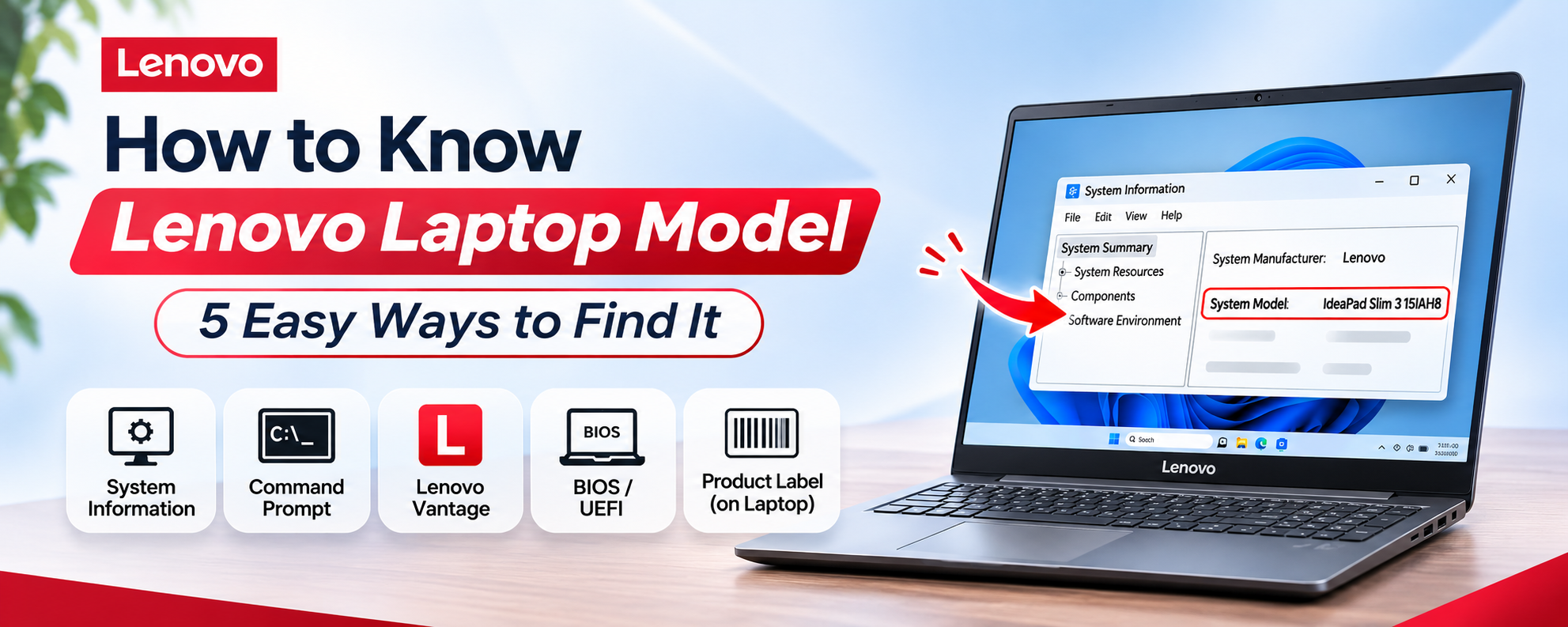

Do you want to know which Lenovo laptop model you have? You may need this information to download the correct drivers, check warranty details, upgrade hardware, or find compatible accessories. Fortunately, you can check your Lenovo laptop model without opening the device or installing additional software.
Windows has built-in tools that can show your laptop's model information. You can also find it in Lenovo Vantage, the BIOS, or on the product label.
Here are five simple ways to identify your Lenovo laptop model.
First, understand the Lenovo Model Name, MTM, and Serial Number
Before checking your laptop, it helps to understand the different identification details Lenovo uses.
Information
What It Means
Model Name
The laptop's product name, such as IdeaPad Slim 3 or ThinkPad T14
Machine Type Model (MTM)
A code that helps identify a more specific model or configuration
Serial Number
A unique number assigned to your individual laptop
These details are not interchangeable. The model name helps identify the product, the MTM provides more specific model information, and the serial number is commonly used for warranty and support services.
1. Find Your Lenovo Laptop Model Using System Information
System Information is one of the quickest ways to check your Lenovo laptop model on Windows 10 and Windows 11.
Follow these steps:
Press Windows + R.
Type msinfo32 in the Run box.
Press Enter.
Wait for the System Information window to open.
Find the System Model field under System Summary.
The System Model field displays the model information reported by your laptop. You can also check System Manufacturer to confirm the manufacturer.
If the result shows a machine-type code instead of a familiar product name, use Lenovo Vantage or Lenovo Support to identify the exact product.
2. Check Your Lenovo Laptop Model Using Command Prompt
Command Prompt provides another way to find your laptop's product name.
Open the Windows Start menu.
Search for Command Prompt.
Open the application.
Enter this command:
wmic csproduct get name
Press Enter.
Your laptop's product name should appear in the result.
Note: WMIC may not be available on some newer Windows installations. If the command does not work, use PowerShell instead.
Open PowerShell and enter:
Get-CimInstance -ClassName Win32_ComputerSystemProduct | Select-Object -ExpandProperty Name
This command can display the product name reported by your Lenovo laptop.
3. Find Your Model Using Lenovo Vantage
Lenovo Vantage is a useful application for checking device information and managing your Lenovo laptop.
To find your model:
Open the Windows Start menu.
Search for Lenovo Vantage.
Launch the application.
Check the home page or the Device Information section.
Look for your product name, system type, or serial number.
If Lenovo Vantage is not installed, you can download it from the Microsoft Store.
This method is useful when Windows System Information displays a model code that is difficult to recognise.
4. Check the Product Label on Your Lenovo Laptop
If your laptop does not turn on, you can still find its identification details from the physical device.
Turn off your laptop and check the label on its bottom panel. Depending on the model, you may find:
Product or model name
Machine Type Model (MTM)
Serial number
You can also check the original packaging if you still have it.
Be careful when reading these details. The serial number identifies your individual device, while the model name and MTM help identify the product and its configuration.
5. Find Your Lenovo Laptop Model in BIOS
You can also check your laptop's model information through BIOS or UEFI.
Follow these steps:
Shut down your Lenovo laptop.
Turn it on and enter BIOS using the appropriate key for your model.
Open the Information or Main tab.
Look for System Model, Machine Type Model, or similar product information.
The available fields and BIOS access keys can vary between Lenovo models. Check your device's user guide if you are unsure how to enter BIOS.
What to Do If You Cannot Find Your Lenovo Laptop Model?
Sometimes Windows may display a code instead of the complete laptop name. In that situation, try these options:
Check Lenovo Vantage for the product name and system type.
Look for the MTM on the laptop's bottom label.
Use the serial number on Lenovo Support to identify your device.
Check your original purchase documents or laptop packaging.
Visit Lenovo Support and use its product detection or product browsing options to find the relevant support page.
Why Is It Important to Know Your Lenovo Laptop Model?
Knowing your laptop's exact model can help you avoid mistakes when looking for support, accessories, or hardware upgrades.
Finding the right drivers: Different Lenovo models may require different drivers. Model information helps you find the correct downloads.
Checking warranty information: Lenovo uses the serial number to identify individual devices and check their warranty status.
Upgrading RAM and SSD: Before buying additional RAM or storage, check the specifications and upgrade compatibility of your exact model.
Finding compatible accessories:
Model information can help you choose the right charger, battery, keyboard, and other replacement parts.
Getting technical support:
Providing the correct model and serial number makes it easier to find relevant support information.
If you are planning to replace your current laptop or compare different models, explore the Lenovo laptops in Bangladesh available at Techland BD. You can compare specifications, features, and prices to find a model that matches your requirements.
Frequently Asked Questions
How do I check my Lenovo laptop model in Windows 11?
Press Windows + R, type msinfo32, and press Enter. In the System Information window, find the System Model field to view your laptop's model details.
How do I find my Lenovo laptop model without turning it on?
Check the label on the bottom of your laptop or its original packaging. You may find the product name, MTM, and serial number there.
Is the Lenovo serial number the same as the model number?
No. The model name identifies the laptop product, while the serial number identifies your individual device. The MTM provides more specific model or configuration information.
Can I check my Lenovo laptop model using its serial number?
Yes. You can enter your serial number on Lenovo Support to identify your product and access device-specific support information.
Why does my Lenovo laptop show a code instead of its model name?
Some Lenovo laptops display a machine-type code or system identifier instead of the familiar product name. You can use Lenovo Vantage, the product label, or Lenovo Support to identify the exact model.






Top comments (0)