
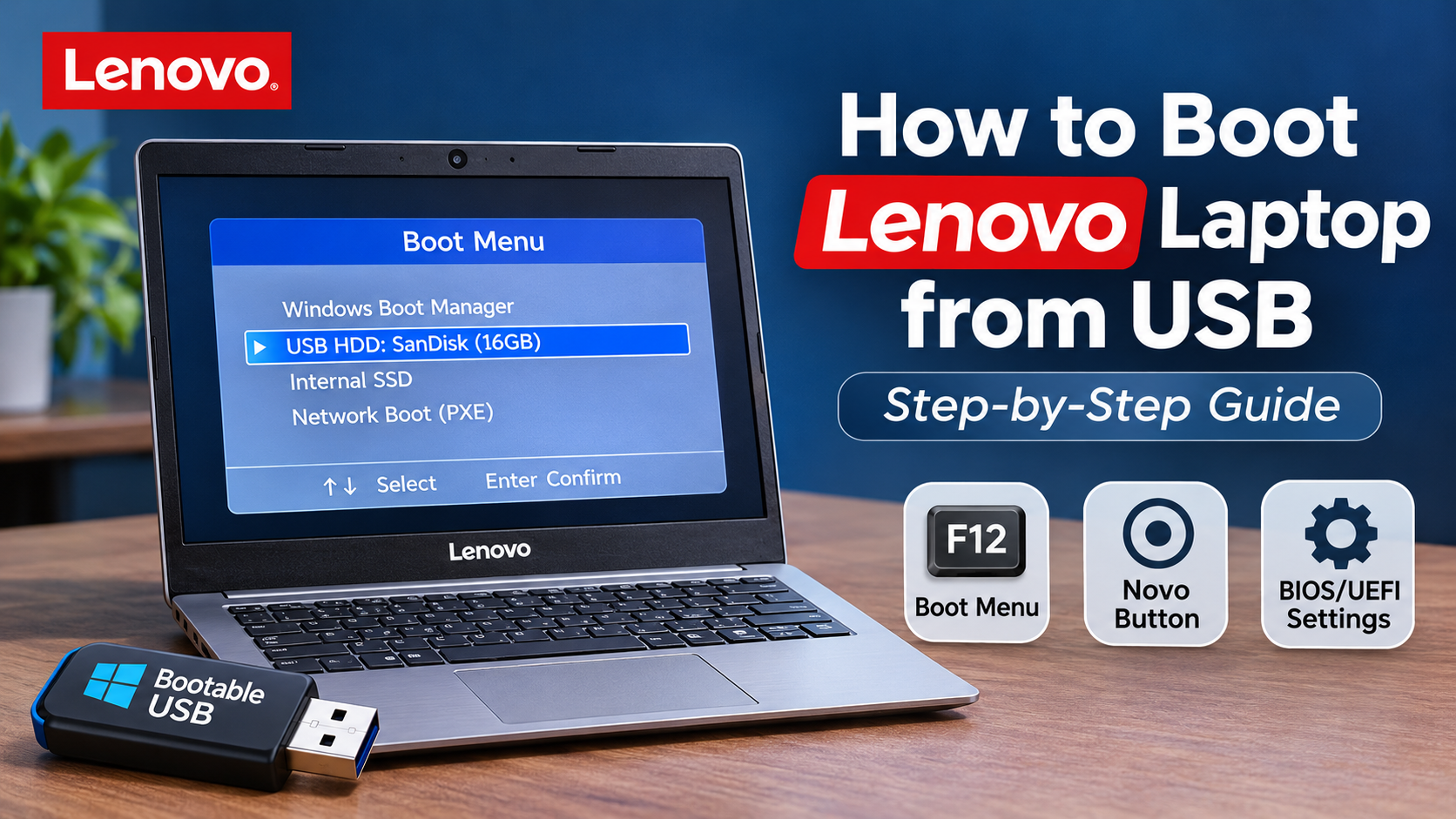

A USB drive can help you install Windows, repair startup issues, or run recovery tools on your Lenovo laptop. However, your laptop will not automatically start from every connected USB drive. You need to open the Boot Menu or change the startup settings in BIOS/UEFI.
If you are searching for how to boot a Lenovo laptop from USB, this guide explains the process step by step. You will learn how to use the F12 key, access the Novo Menu on supported models, change BIOS boot settings, and fix common USB boot problems.
Why Would You Need to Boot a Lenovo Laptop from USB?
There are several reasons to start a Lenovo laptop from a USB drive. The most common is installing or reinstalling Windows. A bootable USB can also help when Windows fails to start properly or when you need to use a recovery or diagnostic tool.
For example, if your laptop gets stuck during startup, you may need to use Windows installation media to access repair options. You might also need a USB drive when replacing an internal SSD or setting up a new operating system.
Before starting, make sure you have a properly prepared bootable USB drive and that your important files are backed up.
What Do You Need Before Booting from USB?
You need a USB flash drive containing the operating system installer or recovery files you want to use. If you are preparing a Windows installation drive, Microsoft recommends a USB drive with at least 8GB of storage.
Creating installation media will erase the existing files on the selected USB drive. Copy your important data somewhere else before using it.
You should also know your Lenovo laptop model. Different models may have different startup keys and BIOS options. If you are unsure about your device, the next section explains how to find its model information.
How to Know Lenovo Laptop Model Before Starting
Knowing your exact model can help you find the correct boot key, BIOS instructions, drivers, and support information. If you are wondering how to know Lenovo laptop model, you can check it directly through Windows.
Using System Information
Press Windows + R on your keyboard. Type msinfo32 and press Enter. The System Information window will open. Find the System Model field to see your laptop model.
Using Command Prompt
Open Command Prompt and enter:
wmic csproduct get name
Press Enter to view the model name. This command may not work on some newer Windows versions. If that happens, use System Information or PowerShell instead.
Checking the Product Label
You can also check the label on the bottom of your Lenovo laptop. Depending on the model, it may show the product name, machine type, or serial number.
Once you know the model, you can check its user guide to confirm the correct boot menu and BIOS keys. You can also browse different Lenovo laptop models if you are comparing devices or planning an upgrade.
How to Create a Bootable USB Drive for Windows
If you want to install Windows, you can create a bootable USB using Microsoft's official Media Creation Tool.
First, visit Microsoft's Windows download page and download the Media Creation Tool. Open the tool, accept the licence terms, and select the option to create installation media for another PC.
Choose your preferred language and Windows edition. Select USB flash drive, then choose the correct USB device from the list. The tool will download the required files and prepare the drive.
Wait until the process finishes. Safely eject the USB drive when it is ready.
Your USB drive can now be used to start the Windows installation process on your Lenovo laptop.
How to Boot Lenovo Laptop from USB Using F12
Using the F12 Boot Menu is one of the easiest ways to start a Lenovo laptop from a USB drive. Many Lenovo models support this method.
Follow these steps:
- Turn off your Lenovo laptop.
- Connect the bootable USB drive to a USB port.
- Turn on the laptop.
- Press F12 repeatedly when the Lenovo logo appears. Some models require Fn + F12.
- Wait for the Boot Menu to appear.
- Select your USB drive from the available devices.
- Press Enter to start from the USB drive.
If the USB drive is correctly prepared and detected, your laptop should start from it. If you are installing Windows, the Windows Setup screen should appear.
The boot key can vary by model. If F12 does not work, check your laptop's user guide or Lenovo support documentation.
How to Boot Lenovo Laptop Using the Novo Button
Some Lenovo IdeaPad laptops have a small Novo Button that provides access to startup options. It can be useful if you cannot open the Boot Menu using the regular F12 method.
First, shut down your laptop and connect the bootable USB drive. Look for the Novo Button, which is usually a small recessed button located near the power button or along the side of the laptop. Its position depends on the model.
Press the button carefully. If it is recessed, you may need a suitable tool to press it. The Novo Menu should appear on the screen.
Select Boot Menu, choose your USB drive, and press Enter.
Keep in mind that not every Lenovo laptop includes a Novo Button. If your device does not have one, use the F12 or BIOS/UEFI method.
How to Boot Lenovo Laptop from USB Through BIOS/UEFI
If your USB drive does not appear in the Boot Menu, check the BIOS/UEFI settings. BIOS keys vary between Lenovo product lines.
Many IdeaPad models use F2 or Fn + F2 to enter BIOS. Many ThinkPad models use F1. Check your laptop's documentation if these keys do not work.
After entering BIOS/UEFI, open the Boot section. Look for the available boot devices and check whether your USB drive is detected.
If you need to change the startup priority, move the USB drive above the internal SSD or HDD. Save the changes and exit BIOS.
Your laptop should now attempt to start from the USB drive.
Be careful when changing firmware settings. The exact options and menu names may differ between models.
One-Time Boot Menu vs. Permanent Boot Order
The F12 Boot Menu and BIOS boot priority are two different ways to select a startup device.
The F12 Boot Menu lets you select a USB drive for one startup session. After that, your laptop normally returns to its usual startup order. This is convenient when you only need to install Windows or run a recovery tool.
Changing the boot priority in BIOS/UEFI makes a more permanent change. Your laptop may check the USB drive before the internal storage every time it starts.
For a one-time installation, using the F12 Boot Menu is usually the simpler option.
What to Do If Your Lenovo Laptop Does Not Boot from USB
Sometimes a Lenovo laptop does not detect the USB drive or continues loading Windows instead. Try the following checks before changing advanced settings.
USB drive is not showing in Boot Menu
Reconnect the USB drive and try another USB port. If possible, test it on another computer. If the drive is not detected there either, it may be damaged or incorrectly prepared. You can recreate the installation media using Microsoft's official tool.
F12 does not open the Boot Menu
Try Fn + F12. Press the key repeatedly as soon as you turn on the laptop. If the menu still does not appear, check the correct startup key for your Lenovo model.
Laptop starts Windows instead of USB
Restart the laptop and open the Boot Menu again. Make sure you select the USB device rather than the internal SSD or HDD. If the USB drive is not listed, check whether BIOS/UEFI detects it.
Secure Boot prevents USB startup
Some bootable drives may not work with the current Secure Boot configuration. Check the requirements of the operating system or recovery tool before changing this setting. Do not disable Secure Boot unless the specific boot media requires it and you understand the security implications.
BitLocker asks for a recovery key
Changes to certain startup or firmware settings can trigger a BitLocker recovery request. Keep your recovery key available before changing BIOS settings. You can follow Microsoft's official recovery instructions if the prompt appears.
Novo Button does not work
The Novo Button is available only on supported Lenovo models. Check your user guide to confirm whether your laptop has this feature. If it does not, use the F12 Boot Menu or BIOS/UEFI method.
How to Check Lenovo Laptop Warranty
If you are troubleshooting a recently purchased laptop, it may also be useful to check its warranty status. Knowing how to check Lenovo laptop warranty can help you understand whether your device is still covered by the manufacturer.
First, find your laptop's serial number. You can usually find it on the bottom product label or through Lenovo Vantage.
Visit Lenovo's official support website and enter the serial number in the warranty lookup section. Review the warranty dates and coverage details shown for your device.
If your laptop has a hardware problem, check the available support options before attempting repairs that may affect your warranty.
Are Lenovo Laptops Good for Everyday Use?
If you are considering buying a Lenovo laptop, you may be asking, are Lenovo laptops good? Lenovo offers different laptop series for students, professionals, home users, and gamers.
IdeaPad laptops are commonly used for everyday computing and study. ThinkPad models are designed with business and professional users in mind. Lenovo LOQ and Legion models target gaming and more demanding workloads.
The best option depends on your budget and the work you plan to do. Check the processor, RAM, SSD storage, display, battery life, and graphics before choosing a model.
Which Lenovo Laptop Is Best for Students?
The answer depends on what a student needs to do. For browsing, online classes, presentations, and office applications, an IdeaPad model with suitable specifications may be enough.
Students studying programming, graphic design, or video editing may need a more powerful processor and additional RAM. Those who also play demanding games should consider a model with a dedicated graphics card.
Before buying, compare the specifications and warranty details of available models. You can explore Lenovo laptops in Bangladesh at TechLand BD to compare options for different budgets and requirements.
Frequently Asked Questions
How do I open the Boot Menu on a Lenovo laptop?
Many Lenovo laptops use F12 to open the Boot Menu. Some models require Fn + F12. Supported IdeaPad models may also provide access through the Novo Button.
Why is my USB drive not showing in the Lenovo Boot Menu?
The USB drive may not be properly prepared, connected, or detected. Try another USB port and check whether it works on another computer. You can also check the BIOS/UEFI settings.
Can I install Windows on a Lenovo laptop using a USB drive?
Yes. You can create Windows installation media using Microsoft's Media Creation Tool. Connect the USB drive, open the Boot Menu, select the USB device, and follow the Windows Setup instructions.
Do all Lenovo laptops have a Novo Button?
No. The Novo Button is available only on certain Lenovo models. If your laptop does not have one, use the F12 Boot Menu or the BIOS/UEFI method.
Does changing the boot order delete my files?
Changing the boot order itself does not delete your files. However, installing Windows or formatting a drive can erase data. Back up important files before starting an installation.






Top comments (0)