
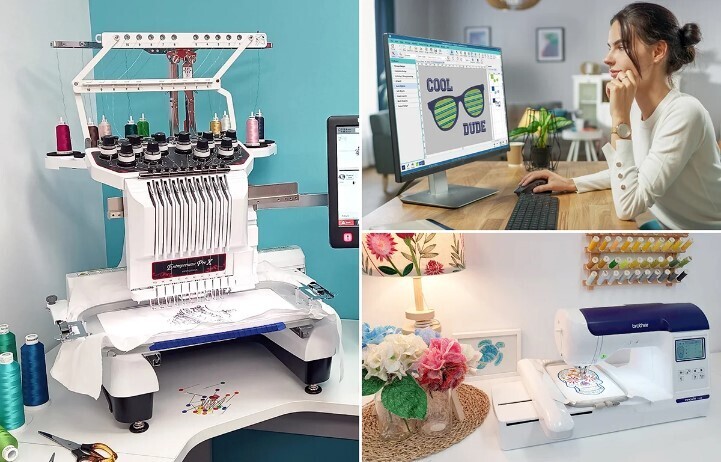

Logos look great on shirts, hats, and bags. Many people want to stitch their logo with a Husqvarna Viking embroidery machine. But a logo cannot go from a picture to stitches in one step. It needs a small process first.If you are new to embroidery, this may feel hard at first. Do not worry. With the right steps, you can easily Convert Logo to Husqvarna Viking File and make it ready for stitching.
In this guide, I will share clear and simple steps based on real embroidery practice.This guide will help you understand how logos turn into stitch files. You will also learn common mistakes and easy fixes. By the end, you will know how to prepare a logo that your machine can read and stitch well.
Why Logos Must Be Prepared Before Stitching
Embroidery machines do not read normal images. They cannot understand JPG or PNG files directly.
A machine needs a stitch file. This file tells the machine:
- Where to place stitches
- What type of stitch to use
- When to change thread color
- How dense the stitches should be
If the file is not prepared well, the design may look messy. Letters may break. Lines may look thick or uneven.
Good logo preparation helps you get:
- Clean stitches
- Clear letters
- Smooth shapes
- Better fabric results
Understanding Husqvarna Viking Embroidery Files
Husqvarna Viking machines use special embroidery formats. The most common format is .VP3.
This file stores stitch data. It also stores color steps and machine commands.
When a logo is digitized, the design is converted into this stitch format. The machine then reads the instructions and stitches the design step by step.
Without this format, the machine will not stitch the logo correctly.
Start with a High-Quality Logo Image
The first step is always the logo image.
Use a Clean Design
A simple logo works best for embroidery. Small details can be hard to stitch.
Good logo designs usually have:
- Bold shapes
- Thick lines
- Clear text
- Few colors
Thin lines and tiny text often disappear during stitching.
Use a High Resolution Image
A blurry image makes digitizing hard.
Use formats like:
- PNG
- SVG
- AI
- High-quality JPG
Vector files like SVG or AI are the best option.
Simplify the Logo Design
Embroidery is not the same as printing. Some printed designs cannot stitch well.
Before digitizing, simplify the logo.
Remove Small Details
Tiny dots or thin lines may not stitch properly. Remove them if possible.
Limit the Colors
Too many colors create too many thread changes.
Try to keep the logo between 3 to 6 colors.
This makes stitching faster and cleaner.
Thicken Thin Lines
Lines that are too thin may break during stitching.
Make sure lines are thick enough for stitches.
Choose the Right Logo Size
Size matters a lot in embroidery.
If the logo is too small, letters may not stitch well. If it is too large, it may wrinkle the fabric.
Common Logo Sizes
Typical sizes include:
- Left chest logo: 3 to 4 inches
- Hat logo: about 2 to 2.5 inches
- Sleeve logo: 2 to 3 inches
Always choose a size that fits the item.
Select the Correct Stitch Types
Different parts of a logo need different stitches.
Satin Stitch
This stitch is perfect for:
- Letters
- Borders
- Bold lines
It creates a smooth and shiny look.
Fill Stitch
Fill stitch works best for large areas.
It fills shapes with rows of stitches.
Running Stitch
This stitch is used for:
- Thin outlines
- Small details
Choosing the right stitch type improves the final result.
Adjust Stitch Density
Density means how close the stitches are.
If stitches are too close:
- Fabric may pucker
- Thread may break
If stitches are too far apart:
- Fabric may show through
A balanced density creates smooth embroidery.
Professional digitizers test density based on the fabric type.
Plan the Stitch Direction
Stitch direction affects how the design looks.
Changing stitch angles can create depth and texture.
For example:
- Horizontal stitches for one area
- Vertical stitches for another
This makes the logo more interesting and neat.
Good stitch direction also reduces fabric pulling.
Set the Correct Stitch Order
Stitch order matters more than many beginners think.
A well-planned order helps the design stitch smoothly.
Most logos follow this order:
- Background shapes
- Main fill areas
- Borders
- Small details
- Text
This order prevents overlaps and messy stitches.
Choose Proper Thread Colors
Thread colors should match the logo as closely as possible.
Embroidery software usually has thread libraries such as:
- Madeira
- Isacord
- Robison-Anton
These libraries help you choose accurate colors.
Always preview colors before stitching.
Test the Logo Before Final Stitching
Testing is one of the most important steps.
Even expert digitizers always test their files.
Use Scrap Fabric
Use fabric that is similar to the final product.
For example:
- Cotton for shirts
- Twill for caps
- Polyester for sportswear
Check for Problems
During the test run, look for:
- Thread breaks
- Gaps in stitches
- Fabric puckering
- Misaligned text
If you see problems, adjust the design before final production.
Use Stabilizer for Better Results
Stabilizer supports the fabric during embroidery.
Without stabilizer, designs may stretch or wrinkle.
Common Stabilizer Types
Cut-away stabilizer
Used for stretchy fabrics like T-shirts.
Tear-away stabilizer
Used for firm fabrics like caps or jackets.
Wash-away stabilizer
Used for delicate or lace designs.
Choosing the right stabilizer keeps the logo clean and sharp.
Check Machine Compatibility
Before stitching, confirm that the file works with your Husqvarna Viking machine.
Some machines support:
- USB transfer
- Direct software connection
Always preview the design on the machine screen.
Check for:
- Correct colors
- Proper size
- Correct stitch count
This small step saves time and thread.
Common Logo Digitizing Mistakes
Even experienced users sometimes make mistakes.
Here are some common problems.
Too Many Stitches
Excess stitches can make the design heavy.
It may also slow down the machine.
Small Text
Text smaller than 4 mm can be hard to read in embroidery.
Poor Underlay
Underlay stitches support top stitches.
Without underlay, designs may sink into fabric.
Ignoring Fabric Type
Different fabrics behave differently.
Denim, cotton, and polyester all need different stitch settings.
Tips from Real Embroidery Experience
After working with embroidery machines for years, some habits always help.
Keep Designs Simple
Simple logos stitch better and faster.
Test More Than Once
A second test often improves quality.
Use Good Thread
Cheap thread breaks more often.
Clean the Machine
Dust and thread pieces can affect stitching.
Regular cleaning improves machine performance.
Helpful Software for Logo Preparation
Many tools help prepare logos for embroidery.
Popular embroidery software includes:
- Husqvarna Viking Premier+
- Wilcom
- Hatch Embroidery
- Embrilliance
These tools help convert designs into stitch files.
They also allow editing, resizing, and color changes.
Final Thoughts
Preparing a logo for Husqvarna Viking stitching is not just about pressing a button. It is a process that needs care and planning.
Start with a clean logo image. Simplify the design. Choose the right stitches and colors. Test the design before final stitching.
These steps may seem small, but they make a huge difference in the final result.
With practice, the process becomes easy. Soon you will be able to prepare logos that stitch smoothly and look professional on any fabric.
Embroidery is both art and skill. When a logo is prepared the right way, the final stitched design can look amazing and last for years.


Top comments (0)