
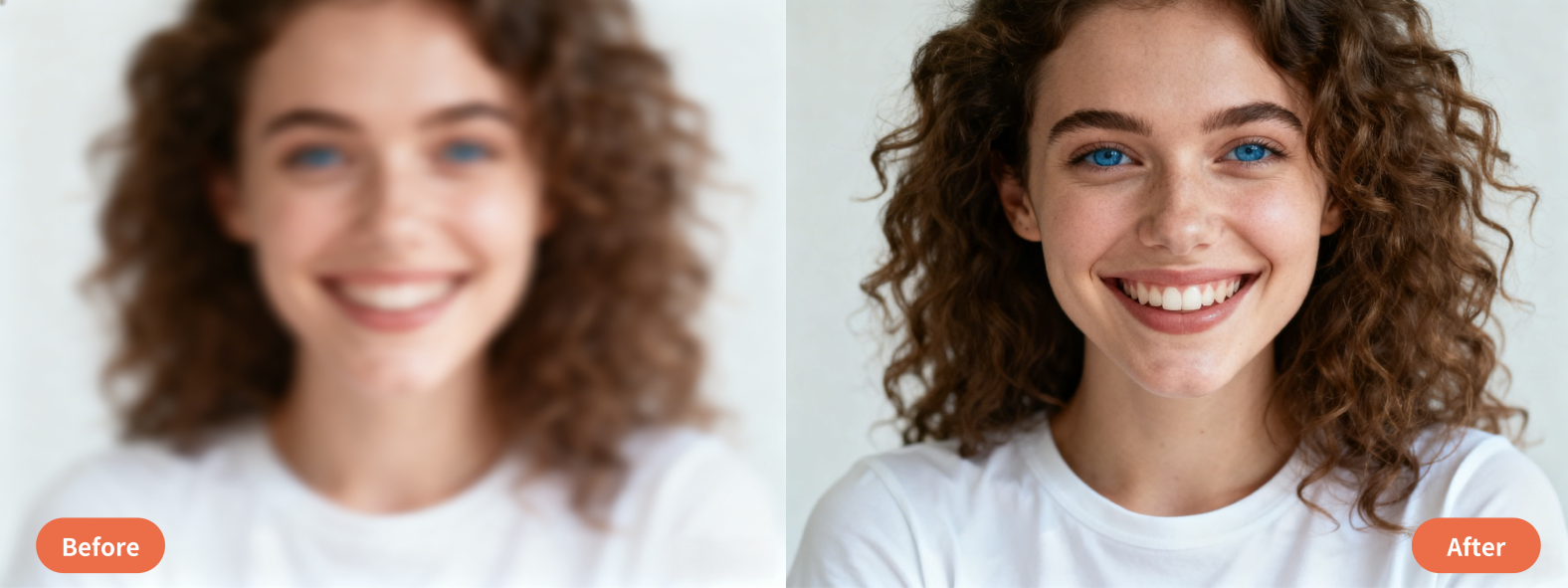
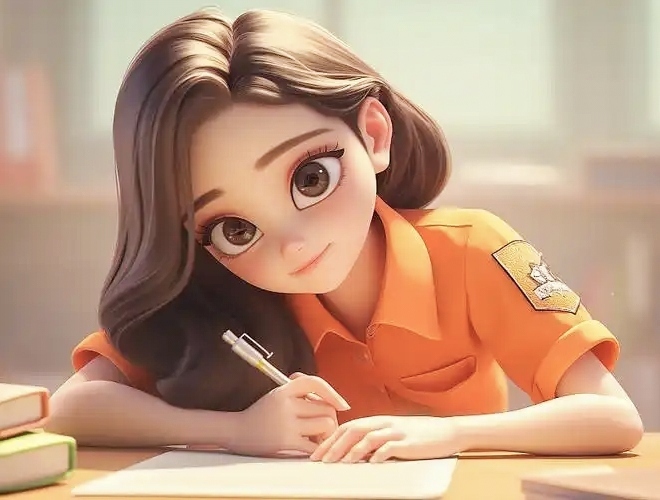
When I first landed on AIEnhancer.ai, I wasn’t expecting much. Tools that promise “one-click image enhancement” usually fall into two categories: either they oversmooth everything or they make images look strangely artificial. But after testing this online AI image enhancer on portraits, AI-generated artwork, and even an old scanned family photo, I realized it deserves a more detailed review — not just because of what it does well, but because of how simple and practical the whole experience feels.
This review is based entirely on my own usage over several days, walking through the interface, the settings, the output quality, and the small quirks that stood out along the way.
User Experience & Interface — Simple, Fast, and Surprisingly Thoughtful
The first thing you notice on AIEnhancer.ai is how clean the interface feels. There’s no clutter, no overwhelming toolbars, and no confusing menus. Just a large upload box inviting you to drop a photo. When I pasted an image directly from my clipboard, the tool responded immediately — something not all online photo enhancers support.
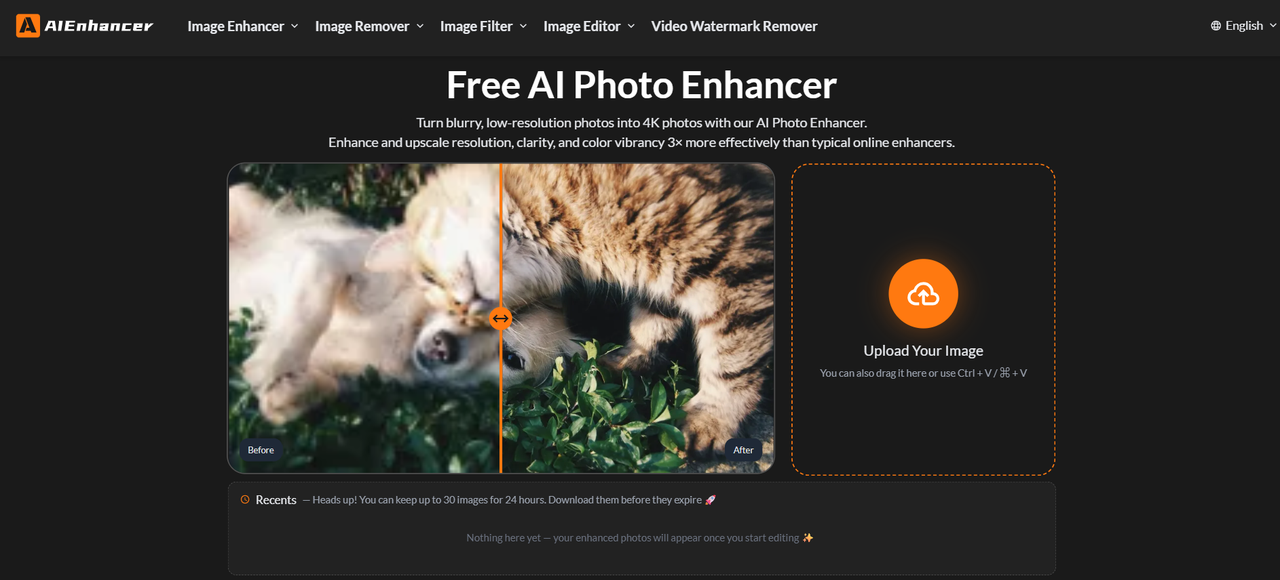
After uploading, the layout changes smoothly into a focused editing view. The left side shows the original image, while the right side displays the enhanced version. The transition is fast enough that you don’t lose your sense of flow; the tool quietly does the processing in the background, and the enhanced preview appears without breaking your attention. This made the workflow feel natural, especially when I was testing multiple images in a row.
The enhancement modes are presented clearly. Instead of cryptic jargon, you get options like Balanced, Strong, Old Photo, AI Distortion Fix, and Digital Art. During my tests, switching between modes didn’t reload the page or restart the entire process; it simply re-rendered the preview, which kept experimentation quick and stress-free. The UI doesn’t try to look fancy — it tries to get out of the way. And honestly, for this type of tool, that’s the best design choice.
I do wish the interface offered a little more fine-tuning. For example, I sometimes wanted to reduce the strength of sharpening or adjust color intensity. But even without sliders, the simplicity of the UI felt intentional and beginner-friendly.
Enhancement Quality & Feature Performance — How Well Does It Actually Work?
After testing several types of images, the enhancement quality became the most pleasant surprise. The tool isn’t just “making things sharper” — it’s actually reconstructing details in a way that feels natural.
Portrait Photos
When I tested a slightly blurry portrait taken indoors, AIEnhancer.ai managed to brighten facial details without introducing plastic skin textures. The eyes became noticeably clearer, the hair gained definition, and even the low-light grain was softened without losing depth. Many AI upscalers overdo face smoothing, but this one kept the person looking real.
AI-Generated Images
AI art is always tricky: fingers deform, edges get mushy, textures become inconsistent. The AI Distortion Fix mode turned out to be extremely practical. In a Midjourney portrait that originally had a warped jawline, the enhancer subtly corrected the structure and sharpened the key features without altering the original artistic style. It also fixed texture inconsistencies — one of those small but important improvements that makes an image look more intentional.
Old Photos & Scans
This was the mode I was most curious about. I tested a 15-year-old low-resolution family photo with faded colors. The result wasn’t over-restored like some tools tend to do. Instead, it gently revived the colors, improved clarity around faces, and minimized noise. It couldn’t magically rebuild missing details, but the photo felt alive again — definitely usable for digital albums.
General Upscaling
Standard images — like product photos or social media graphics — upscale cleanly. The tool claims up to “4K enhancement,” and while results vary depending on the source, the improvements were consistently noticeable: cleaner lines, more accurate edges, less fuzziness in text elements. For e-commerce sellers or creators preparing visuals for posts, this is extremely useful.
Real-World Usage — Where This Tool Fits Into a Creative Workflow
What stood out most is how naturally AIEnhancer.ai fits into everyday workflows. During my testing, I realized this tool wasn’t meant to replace Photoshop — it complements it.
- For social media content: I enhanced several mobile photos before posting. The tool lifted shadows, cleaned noise, and sharpened key details, making the images look professionally edited with almost no effort.
- For AI art creators: If you generate many Midjourney or SD images, this tool acts like a “polishing step” before publishing. It fixes weird textures and gives images a finished, high-resolution look.
- For old personal photos: It offers an easy way for people with zero editing experience to bring old pictures back to life.
- For e-commerce: Product photos get sharper outlines and richer colors — enough to make them more appealing on listing pages. Across all these scenarios, the biggest advantage is speed. You upload, enhance, and download — often within seconds. No accounts. No complicated settings. No software installation.
Where AIEnhancer.ai Could Improve — Honest Observations After Testing
Even though my overall experience was positive, there are areas that could make the tool even more powerful.
One limitation I encountered was the lack of manual control. There were moments I wished I could adjust enhancement intensity, reduce face smoothing, or tweak color vibrancy. While the preset modes work well, having optional sliders would give advanced users more flexibility without overwhelming beginners.
Another improvement would be batch processing. When working with multiple AI-generated images, uploading one at a time became repetitive. A “multi-image upload and enhance” option would dramatically improve efficiency for creators or e-commerce sellers dealing with many photos at once.
File size limits could also be communicated more transparently. Some large exports from my camera weren’t accepted, and I had to downsize them first. Clear guidelines would help avoid confusion.
Finally, although the tool stores recently enhanced images temporarily, long-term access or an optional login system could help users who edit collections over several days.
None of these issues are deal-breakers; they simply show how much potential the platform still has to grow.
Final Verdict — Worth Using? Absolutely.
After multiple rounds of testing, I can say that AIEnhancer.ai is genuinely one of the simplest and most practical online AI photo enhancement tools available right now. It doesn’t try to be a full editing suite, and it doesn’t overwhelm you with unnecessary features. Instead, it focuses on clarity, speed, and natural-looking results — and succeeds in all three areas.
If you’re a creator, designer, or someone who works with images regularly, this tool can easily become part of your daily workflow. It won’t replace your professional editor, but it will save you time, fix AI artefacts, clean up social photos, and elevate old images with almost zero effort.
Overall Rating: 4.5 / 5
A simple, reliable, and surprisingly capable AI image enhancer — especially for quick, high-quality fixes.




Top comments (1)
Hi,
We offer guest posting backlinks on high-quality sites at competitive rates.
Please let me know the types of sites you're looking for and your maximum budget, and I'll provide some options.
This is my email id : [email protected]