

Imagine a character called 葵 appearing on three pages. The first page calls her Aoi, the second calls her Hollyhock, and the third brings back Aoi. A reader may assume the middle page introduced a new character. In this illustrative example, all three labels refer to the same person. Add a glossary entry with 葵 in Original and Aoi in Translate as, then translate the affected pages again and check the result against the source.
A glossary carries the spelling decision across translation requests. It works best when the source lettering has been recognized correctly and the entry identifies a name or term clearly. A useful review starts by finding where the mistake occurred.
Separate reading, translation, and lettering
A manga page goes through three different decisions. The system reads text from the image, translates the recognized text in context, and fits the result into the page. The same symptom can come from different steps.
| What you see | What to check | What to do |
|---|---|---|
| The clean, readable source name is rendered as two different English names | Compare the original spelling on both pages | Save a glossary entry and rerun the affected pages |
| A small or stylized name is read as a different character | Inspect the original at full size | Try a clearer source image, and check the OCR before adding another spelling |
| The right name is split across two lines or clipped near the border | Compare the letters in the output with the intended name | Review the lettering and bubble area separately |
Consider 葵 again. When the model sees it in a cast introduction, nearby dialogue helps signal that it is a name. On a later page it may appear in a short shout with little surrounding text. The glossary gives both requests the same spelling decision. If the small print was misread before translation, the model may receive different characters, and the intended entry may never apply. In that case, expanding the glossary can hide the real problem. The page needs a clearer scan or a separate OCR check.
Build a small glossary before translating a chapter
Start with terms readers will notice if they change. Add the main cast, recurring places, and named groups or techniques. Take the original spelling from the artwork, then decide how it should appear in the target language. Here are two example rows for English.
| Original | Translate as | Reason |
|---|---|---|
| 葵 | Aoi | Keep the reading chosen for the character |
| 白鷺隊 | White Heron Squad | Keep the group's name stable across chapters |
Keep a separate list for each series and target language. A name that should stay in romanized Japanese in the English edition may be rendered differently in Korean. A term can also have a literal meaning in ordinary dialogue and a special meaning in one series. Use the most specific source phrase that appears consistently. For instance, the full group name is a better entry than a single word such as 白鷺 if the story also has scenes about the bird.
A glossary and an honorific style make different decisions. Aoi is the character's name. Whether the dialogue says Aoi, Aoi-san, or uses a different form of address depends on the tone and style of the translation. Keep the core name stable first. Then compare an example where distance or intimacy matters with the honorifics and translation styles guide.
Add the entries in the browser
- Open the translation studio and select an image from the chapter. Pick your target language and translation style.
- Open Glossary and choose Add terms, or Edit if you already have entries. Enter the original spelling on the left and the target spelling on the right.
- Choose Save glossary before starting the translation. Check that the studio shows the number of saved terms.
- Translate a page with a clear occurrence of the name. Then try a later page where it appears in a shorter line or a smaller bubble. Compare both with their originals before adding the rest of the chapter.
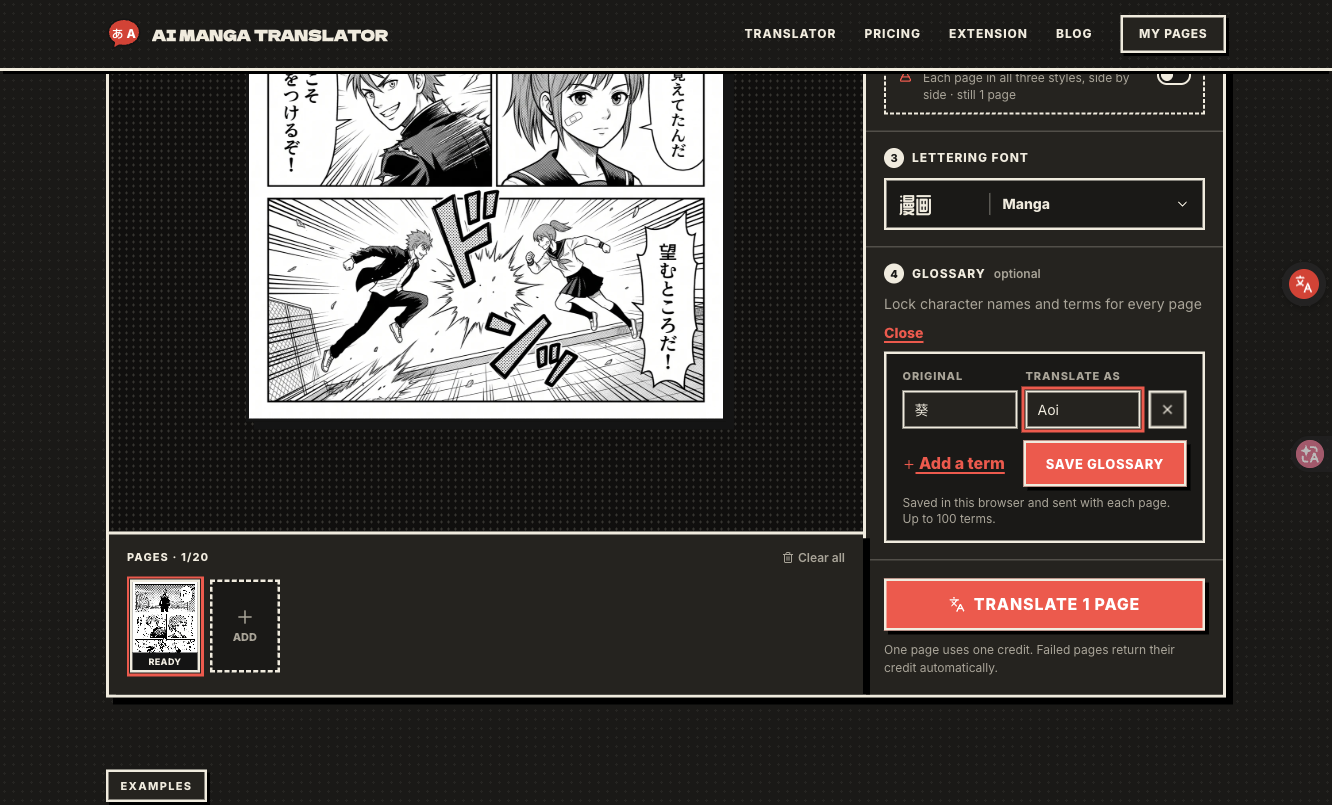
The studio remembers the saved glossary in this browser. When you submit a page, it sends the entries with that page's translation request. The current editor supports up to 100 terms, with up to 60 characters per field. Blank pairs are dropped. Switching browsers, changing devices, or clearing site data can leave you with an empty list. Keep the series glossary somewhere you can refer to it again, and check the saved entries when you change series. Browser storage is tied to the site's origin. MDN's localStorage reference explains how this storage works.
Verify the name before rerunning the whole batch
Pick two pages where the same name is legible. Include one plain mention and one difficult occurrence, such as a line inside a narrow bubble. Keep the target language, translation style, and font the same so that the glossary is the only change between runs. Record the source spelling, the displayed result, and the page number. Inspect the first and last letters at the original zoom level.
During development, we tested a deliberately obvious term override with 約束 → PACT and checked that the requested wording appeared in the output. A conspicuous marker makes it easy to tell whether a request carried the new glossary. Use normal publication wording after checking the path. This check tests a specific substitution. A chapter review still needs several occurrences of important names and a look at which bubbles were missed.
Start with the pages where a mismatch matters to the reader. Adding a row affects later translation requests, so check which pages need to be rerun. When names match but type is still cramped, review how translated text is fitted into manga bubbles. When several lines disappear near the same point in a long Webtoon, check the long-strip detection case study. Both checks keep the troubleshooting focused on the step that produced the problem.
Disclosure: AI assisted with drafting and editing. The product behavior was checked against the current interface and source code.





Top comments (0)